
C# Mobile Development Interview Questions and Answers (2026) – .NET MAUI, Xamarin, Core Mobile Arhitecture

Welcome to the our .NET Interview Questions and Answers series exploring the ins and outs of C# and .NET! This part of the C# / .NET interview questions and answers covers modern mobile development interview questions on .NET. The Answers are split into sections: What 👼 Junior, 🎓 Middle, and 👑 Senior .NET engineers should know about a particular topic.
Also, please take a look at other articles in the series: C# / .NET Interview Questions and Answers
- Part 1: Core Language & Platform Fundamentals
- Part 2: Types and Type Features
- Part 3: Collections and Data Structures
- Part 4: Async & Parallel Programming
- Part 5: Design Patterns
- Part 6: ASP.NET Core
- Part 7: SQL Database
- Part 8: NoSQL Databases
- Part 9: Microservices and Distributed Systems
- Part 10: Testing
- Part 11: Desktop Development
- Part 13: AI
- Part 14: Agile & Scrum
Framework Choices & Migration
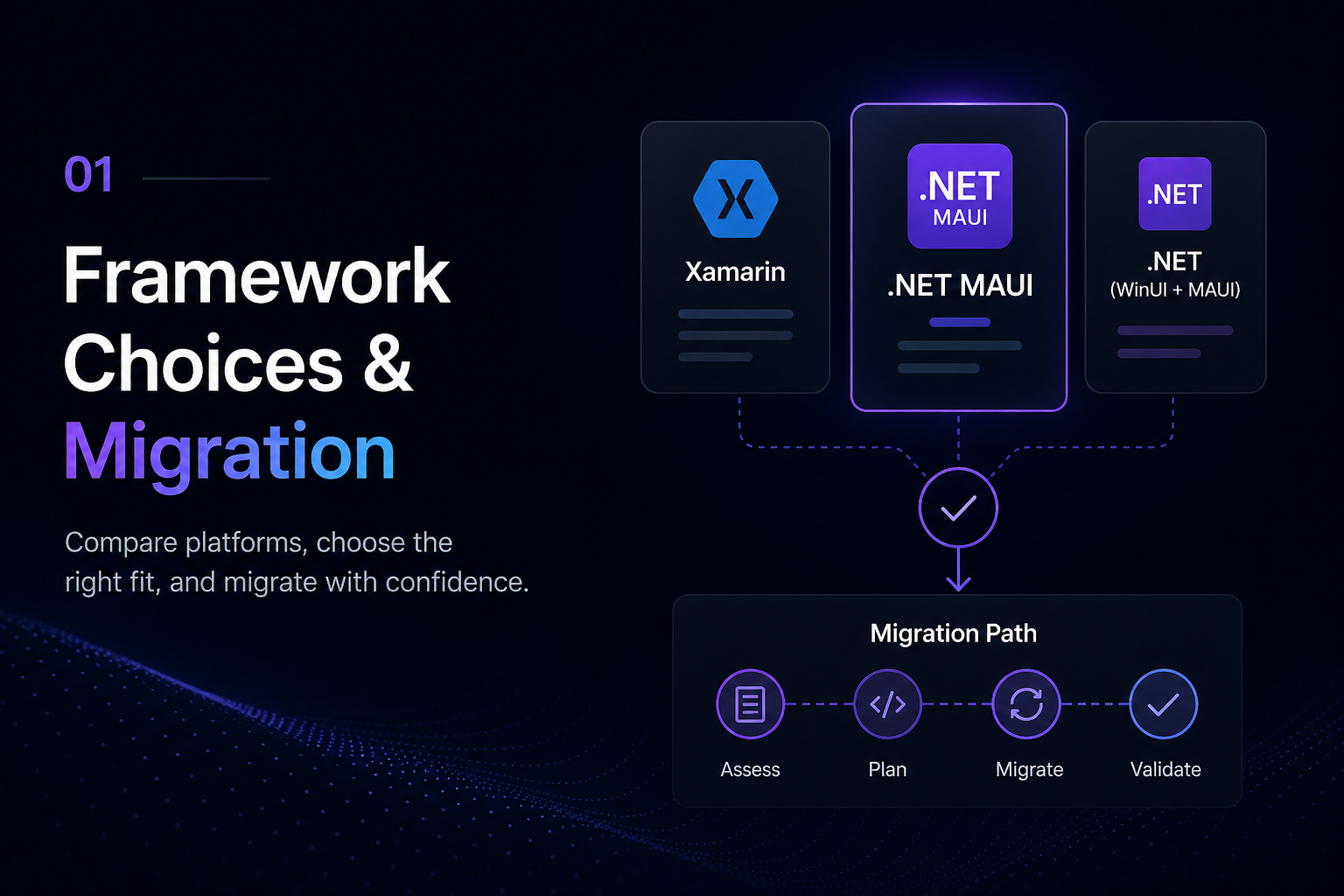
❓ How do native MAUI UI, BlazorWebView, HybridWebView, and WebView differ in 2026?
These options solve very different problems, even though they can all appear inside a MAUI app.
- Native MAUI UI means the interface is built with MAUI controls (
Button,CollectionView,Grid, etc.), which are rendered as real native platform controls through MAUI handlers. This gives the best native look, platform accessibility, and deepest OS integration. - WebView is the simplest web-hosting option. It embeds a browser and loads remote or local web content inside the app. The UI is still fundamentally a website running inside a browser container, with limited structured integration into native app code.
- BlazorWebView hosts a Blazor application locally inside the app. Razor components render into an embedded WebView, but the .NET runtime runs inside the MAUI process. This allows sharing UI/component code between web and desktop/mobile apps while still integrating with native services.
- HybridWebView is the middle ground introduced to simplify JavaScript-to-.NET interop scenarios. It is essentially a WebView with a cleaner built-in bridge for hybrid applications where part of the UI is web-based but tighter native communication is required.
Architecturally, the trade-offs are mostly about performance, maintainability, and code reuse:
- Native MAUI UI
- Best native UX/performance
- Full platform integration
- Separate UI stack from web apps
- WebView
- Fastest way to embed an existing web app/site
- Weak native integration
- Browser-style UX
- BlazorWebView
- Strong .NET/web code sharing
- Heavier runtime/memory footprint
- Great for .NET-centric teams
- HybridWebView
- Better hybrid/native communication model
- Useful when web UI needs frequent native interaction
What .NET engineers should know:
- 👼 Junior: Native MAUI UI uses real platform controls; WebView-based options render web content inside the app.
- 🎓 Middle: BlazorWebView is for hosting Blazor locally in the app, while HybridWebView improves native/web interop for hybrid scenarios.
- 👑 Senior: Choosing between them is an architectural trade-off between native UX, code sharing, performance, team skillset, and long-term maintainability.
❓ How do you migrate a Xamarin.Forms app to .NET MAUI?
Migrating from Xamarin.Forms to MAUI is a meaningful refactor, not a simple upgrade. The project structure, namespace changes, startup model, renderer architecture, and NuGet ecosystem all changed. Microsoft provides a migration assistant tool that automates mechanical tasks such as namespace replacements, project file restructuring, and package updates, but custom renderers, platform-specific code, and third-party library compatibility require manual attention.
The migration path has two approaches: an in-place upgrade using the .NET Upgrade Assistant or a side-by-side migration that creates a new MAUI project and progressively moves code. For large apps, side-by-side is safer; it lets you validate each migrated piece before committing, without risking a working Xamarin app being broken during the migration.
Steps to migrate Xamarin Forms to MAUI
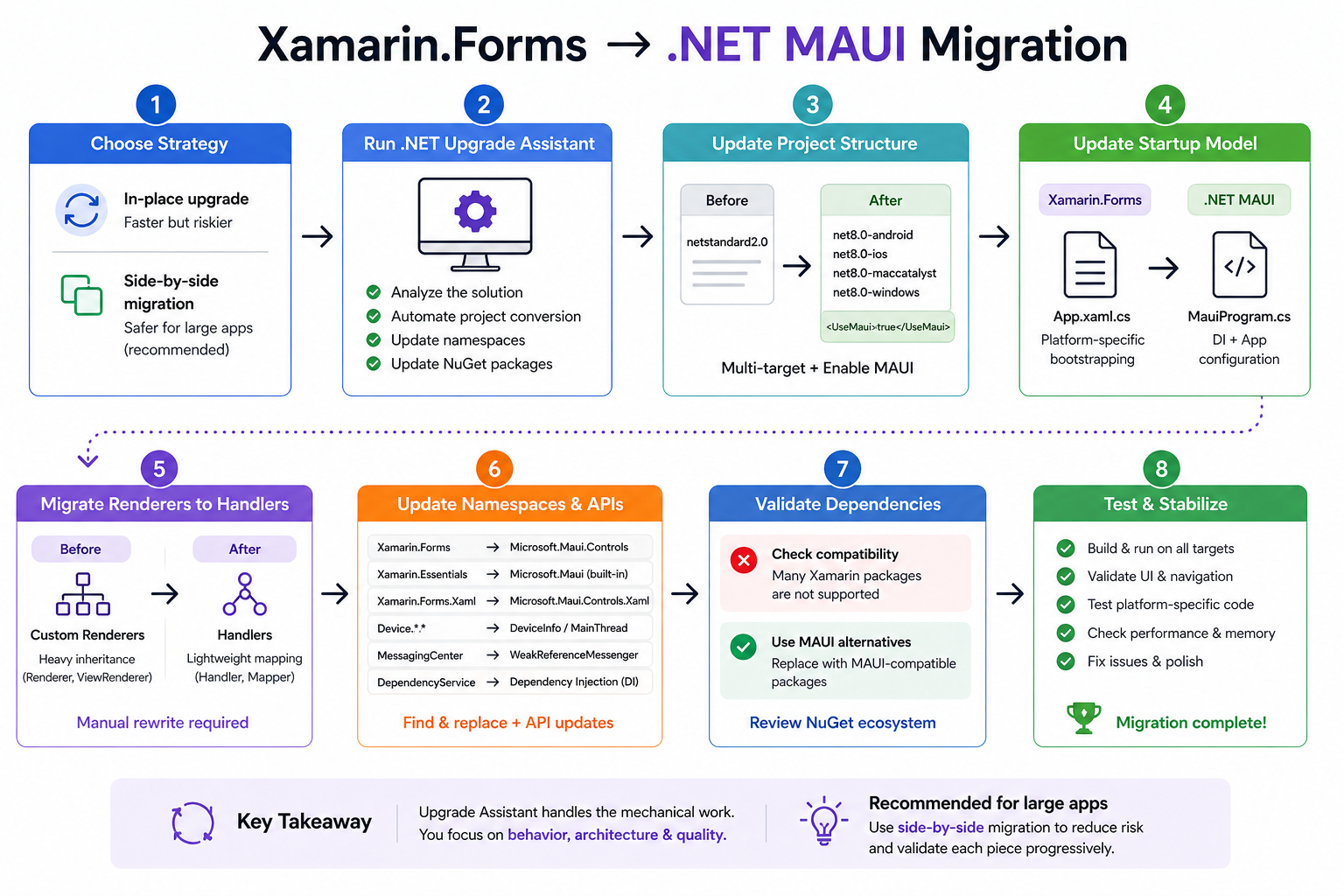
Run the .NET Upgrade Assistant:
# Install the upgrade assistant
dotnet tool install -g upgrade-assistant

# Analyze the project first — shows what needs changing
upgrade-assistant analyze MyXamarinApp.sln

# Run the migration
upgrade-assistant upgrade MyXamarinApp.sln \
    --target-tfm-support LTS
Project file transformation:
<!-- Xamarin.Forms .csproj (before) -->
<Project Sdk="Microsoft.NET.Sdk">
  <PropertyGroup>
    <TargetFramework>netstandard2.0</TargetFramework>
  </PropertyGroup>
  <ItemGroup>
    <PackageReference Include="Xamarin.Forms" Version="5.0.0.2612" />
    <PackageReference Include="Xamarin.Essentials" Version="1.7.3" />
  </ItemGroup>
</Project>

<!-- MAUI .csproj (after) -->
<Project Sdk="Microsoft.NET.Sdk">
  <PropertyGroup>
    <TargetFrameworks>
      net8.0-android;net8.0-ios;net8.0-maccatalyst;net8.0-windows10.0.19041.0
    </TargetFrameworks>
    <UseMaui>true</UseMaui>
  </PropertyGroup>
  <ItemGroup>
    <PackageReference Include="Microsoft.Maui.Controls" Version="8.*" />
    <!-- Xamarin.Essentials is now built into MAUI — no separate package -->
  </ItemGroup>
</Project>
Namespace and startup model changes:
// Xamarin.Forms App.xaml.cs (before)
public partial class App : Xamarin.Forms.Application
{
    public App()
    {
        InitializeComponent();
        MainPage = new NavigationPage(new MainPage());
    }
}

// MAUI App.xaml.cs (after)
public partial class App : Microsoft.Maui.Controls.Application
{
    public App()
    {
        InitializeComponent();
        // MainPage deprecated in .NET 9 — use Window directly
        MainPage = new AppShell();
    }
}

// MAUI MauiProgram.cs — replaces AppDelegate/MainActivity bootstrap
public static class MauiProgram
{
    public static MauiApp CreateMauiApp()
    {
        var builder = MauiApp.CreateBuilder();
        builder
            .UseMauiApp<App>()
            .ConfigureFonts(fonts =>
                fonts.AddFont("OpenSans-Regular.ttf", "OpenSansRegular"));

        builder.Services.AddSingleton<IDataService, DataService>();
        return builder.Build();
    }
}
Migrate custom renderers to handlers:
// Xamarin.Forms custom renderer (before)
[assembly: ExportRenderer(typeof(BorderedEntry), typeof(BorderedEntryRenderer))]
public class BorderedEntryRenderer : EntryRenderer
{
    protected override void OnElementChanged(ElementChangedEventArgs<Entry> e)
    {
        base.OnElementChanged(e);
        if (Control != null)
        {
#if __ANDROID__
            Control.Background = new ColorDrawable(Android.Graphics.Color.Transparent);
#endif
        }
    }
}

// MAUI handler equivalent (after)
public class BorderedEntryHandler : EntryHandler
{
    public static new PropertyMapper<BorderedEntry, BorderedEntryHandler> Mapper =
        new(EntryHandler.Mapper)
        {
            [nameof(BorderedEntry.BorderColor)] = MapBorderColor
        };

    private static void MapBorderColor(
        BorderedEntryHandler handler, BorderedEntry view)
    {
#if ANDROID
        handler.PlatformView.Background = null;
#elif IOS
        handler.PlatformView.Layer.BorderWidth = 1f;
#endif
    }
}

// Register in MauiProgram.cs
builder.ConfigureMauiHandlers(h =>
    h.AddHandler<BorderedEntry, BorderedEntryHandler>());
Common namespace find-and-replace:
Xamarin.Forms          → Microsoft.Maui.Controls
Xamarin.Essentials     → Microsoft.Maui (built-in)
Xamarin.Forms.Xaml     → Microsoft.Maui.Controls.Xaml
Device.BeginInvokeOnMainThread → MainThread.BeginInvokeOnMainThread
Device.RuntimePlatform → DeviceInfo.Platform
Device.Idiom           → DeviceInfo.Idiom
Application.Current.MainPage.DisplayAlert → Shell or page DisplayAlert
Validate third-party libraries:
<!-- Check compatibility — many Xamarin packages have MAUI equivalents -->

<!-- Before — Xamarin specific -->
<PackageReference Include="Xamarin.CommunityToolkit" Version="2.0.0" />
<PackageReference Include="Shiny" Version="2.0.0" />

<!-- After — MAUI equivalents -->
<PackageReference Include="CommunityToolkit.Maui" Version="7.*" />
<PackageReference Include="Shiny.Core" Version="3.*" />
The Upgrade Assistant handles namespace replacements well but misses behavioral differences — Device.StartTimer replaced by Dispatcher.StartTimer, MessagingCenter replaced by WeakReferenceMessenger, and DependencyService replaced by proper DI. Each requires manual review.
What .NET engineers should know:
- 👼 Junior: Run
upgrade-assistant analyzeBefore touching any code, it lists every breaking change and incompatible package in your solution, giving you a prioritized migration checklist before committing to the effort. - 🎓 Middle: Custom renderer migration to handlers is the most time-consuming part — inventory all renderers before starting, use the MAUI migration guide's renderer-to-handler mapping table, and migrate one renderer at a time with validation between each. Replace
MessagingCenterwithWeakReferenceMessengerandDependencyServicewith constructor injection throughout. - 👑 Senior: Treat migration as a phased project with explicit validation gates — migrate and validate core shared code first, then platform projects, then custom renderers, then third-party libraries. Establish a compatibility matrix for all third-party dependencies before starting, since a single incompatible critical library can block the entire migration. Budget 20-40% of the original development time for complex apps with many custom renderers and platform-specific features.
📚 Resources:
MAUI Project Model, Architecture & DI
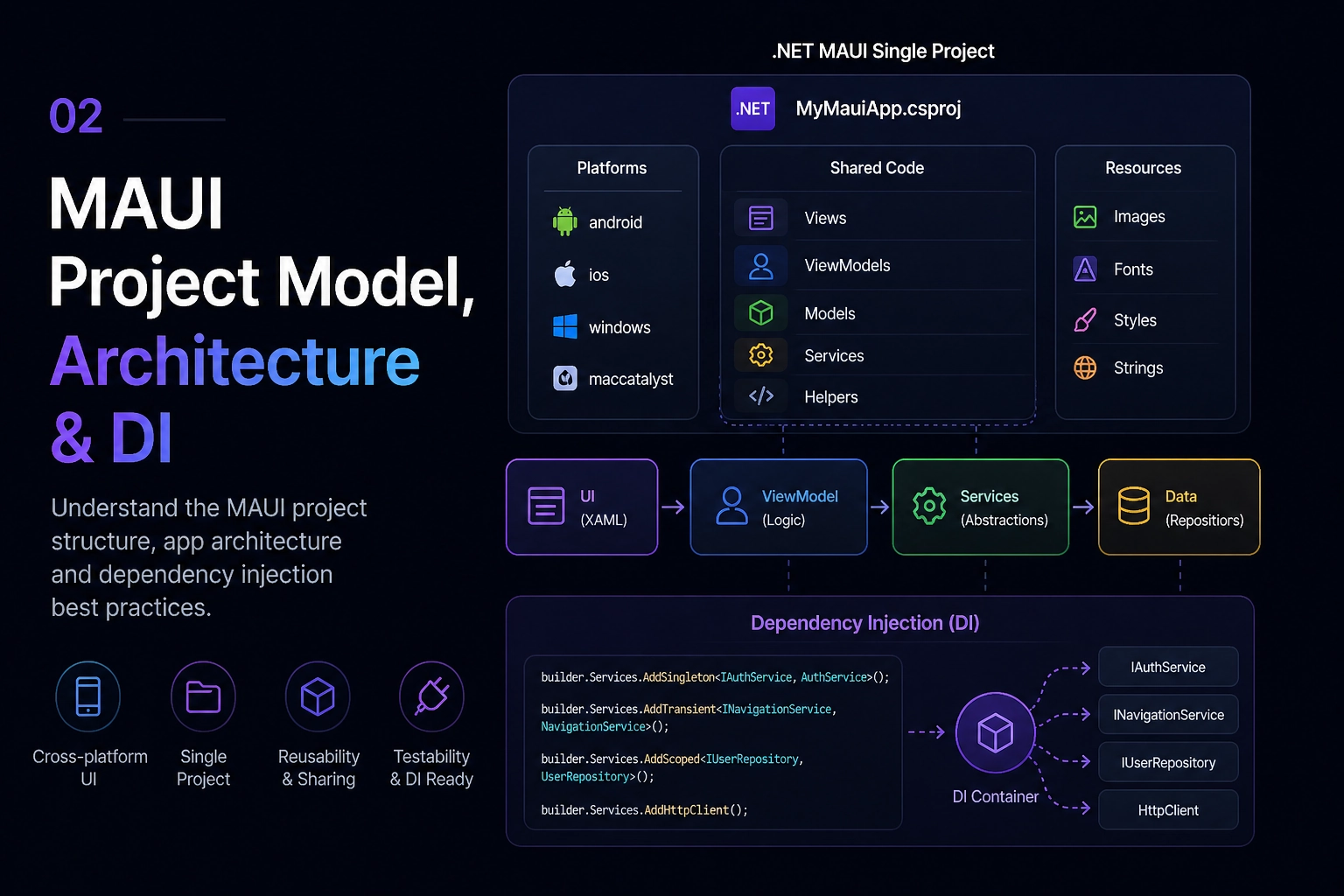
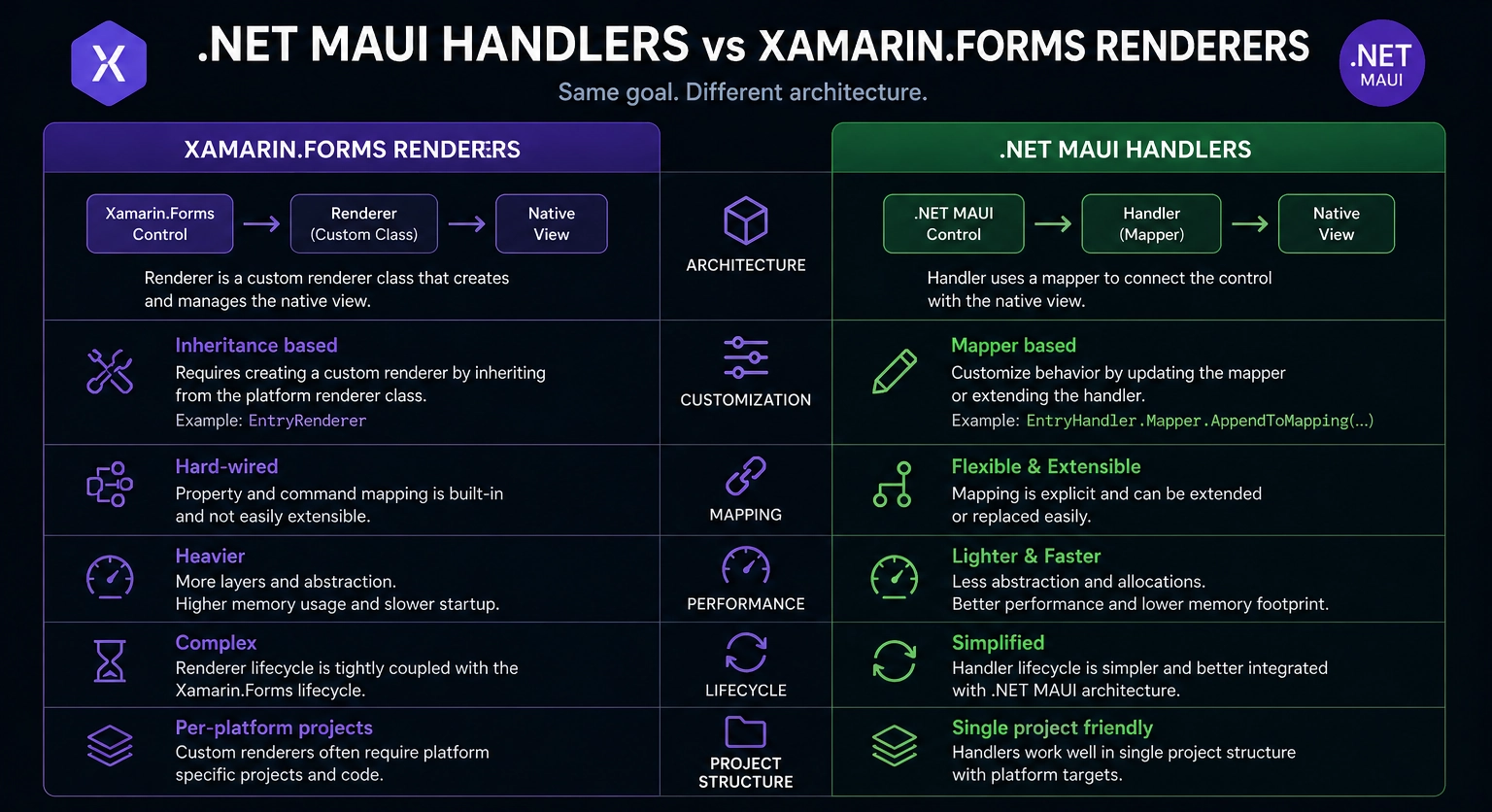
❓ How do .NET MAUI handlers differ from Xamarin.Forms renderers?
The core architectural difference is ownership and coupling. A Xamarin.Forms renderer owned the entire control lifecycle — it subclassed a platform-specific base class, wired every property manually in OnElementChanged, and was tightly coupled to both the cross-platform element and the native view simultaneously. Changing one property meant subclassing the entire renderer. MAUI handlers separate these concerns cleanly: the cross-platform control (IView) knows nothing about the platform, the handler owns the mapping via a static PropertyMapper, and each property is an independent mapping function that can be modified surgically.
What .NET engineers should know:
- 👼 Junior: In Xamarin.Forms you subclassed a renderer to customize a control — in MAUI you append a function to a handler's
PropertyMapper. The mapper approach means changing one property doesn't require touching anything else. - 🎓 Middle: Understand
PropertyMappervsCommandMapper— property mappers sync state from the cross-platform control to the native view, command mappers handle discrete actions like focus or scroll. Both are independently extensible without subclassing, and global customizations viaAppendToMappingapply to every instance of that control app-wide. - 👑 Senior: The handler architecture is designed for AOT compatibility — static mappers are analyzable at compile time, unlike the reflection-based
ExportRendererattribute registration in Xamarin.Forms. This makes handlers the correct choice for iOS NativeAOT builds where reflection-based registration is trimmed. When migrating from Xamarin.Forms, inventory all custom renderers first and map each to the equivalent handler pattern before starting the migration — renderer-to-handler is the most labor-intensive part of a Xamarin-to-MAUI migration.
📚 Resources: MAUI Handlers
❓ How do you customize MAUI controls with handler mappers?
.NET MAUI controls are customized through handlers. A handler maps a cross-platform MAUI control, like Entry or Button, to its native platform control. Handler mappers let the app change that mapping globally or add platform-specific tweaks without creating a full custom renderer like in Xamarin.Forms.
A common example is removing the underline from an Android Entry while keeping the same Entry API in shared code:
#if ANDROID
using Microsoft.Maui.Handlers;
using Android.Graphics.Drawables;
#endif

public static class MauiProgram
{
    public static MauiApp CreateMauiApp()
    {
        var builder = MauiApp.CreateBuilder();

#if ANDROID
        EntryHandler.Mapper.AppendToMapping("NoUnderline", (handler, view) =>
        {
            handler.PlatformView.Background = new ColorDrawable(Android.Graphics.Color.Transparent);
        });
#endif

        return builder.Build();
    }
}
The mapper runs when MAUI connects the virtual control to the native platform view. AppendToMapping adds behavior without replacing existing MAUI behavior. ModifyMapping changes an existing mapping. PrependToMapping runs before the default mapping.
What .NET engineers should know:
- 👼 Junior: Handler mappers customize how MAUI controls are translated into native platform controls.
- 🎓 Middle: Use
AppendToMapping,PrependToMapping, orModifyMappingfor global control customization without creating custom controls. - 👑 Senior: Handler mappers are powerful but global. Large apps need clear conventions, platform guards, and careful testing because one mapper can affect every instance of a control.
📚 Resources: MAUI Handlers
❓ How do you structure MVVM with CommunityToolkit.Mvvm in MAUI?
In .NET MAUI, MVVM usually separates UI, state, and behavior into three parts: the Page contains XAML, the ViewModel exposes bindable state and commands, and services handle external work like APIs, storage, or navigation. CommunityToolkit.Mvvm reduces boilerplate with source generators such as [ObservableProperty] and [RelayCommand].
A typical ViewModel stays small and testable:
using CommunityToolkit.Mvvm.ComponentModel;
using CommunityToolkit.Mvvm.Input;

public partial class ProductsViewModel : ObservableObject
{
    private readonly IProductService productService;

    public ProductsViewModel(IProductService productService)
    {
        this.productService = productService;
    }

    [ObservableProperty]
    private bool isBusy;

    [ObservableProperty]
    private IReadOnlyList<Product> products = [];

    [RelayCommand]
    private async Task LoadAsync()
    {
        if (IsBusy) return;

        IsBusy = true;
        Products = await productService.GetProductsAsync();
        IsBusy = false;
    }
}
The page binds to the ViewModel and avoids business logic in code-behind. The code-behind usually only initializes the page and receives the ViewModel through dependency injection.
public partial class ProductsPage : ContentPage
{
    public ProductsPage(ProductsViewModel viewModel)
    {
        InitializeComponent();
        BindingContext = viewModel;
    }
}
Services and ViewModels are registered in MauiProgram, keeping construction centralized and easy to replace in tests:
builder.Services.AddSingleton<IProductService, ProductService>();
builder.Services.AddTransient<ProductsViewModel>();
builder.Services.AddTransient<ProductsPage>();
What .NET engineers should know:
- 👼 Junior: MVVM separates UI markup from app state and behavior using bindings and commands.
- 🎓 Middle:
CommunityToolkit.Mvvmremoves repetitiveINotifyPropertyChangedand command code while keeping ViewModels clean and testable. - 👑 Senior: Good MAUI MVVM structure depends on clear service boundaries, DI, navigation strategy, async error handling, and avoiding oversized ViewModels that become page-level god objects.
📚 Resources:
❓ How should dependency injection lifetimes be used in MAUI apps?
Dependency injection lifetimes in MAUI follow the same three options as ASP.NET Core — Singleton, Transient, and Scoped — but the absence of a request scope in a desktop/mobile app means Scoped behaves differently and is rarely the right choice. Getting lifetimes wrong in MAUI causes subtle bugs: stale state surviving navigation, shared mutable state corrupting concurrent operations, or memory leaks from services holding references to disposed pages.
The practical mapping for MAUI:
- Singleton — one instance for the app's lifetime. Right for stateless services, shared state stores, HTTP clients, database factories, and anything that's expensive to create or must be shared globally.
- Transient — new instance every time it's resolved. Right for pages and ViewModels that must start with a fresh state on each navigation, and for lightweight stateless utilities.
- Scoped — one instance per DI scope. In MAUI there's no built-in scope boundary like a web request — you must create scopes manually. Rarely used unless you're managing explicit scope lifetimes for a workflow or multi-step form.
What .NET engineers should know:
- 👼 Junior: Use
Singletonfor shared services andTransientfor pages and ViewModels. - 🎓 Middle: Avoid storing screen-specific state in singletons because it can leak stale data between navigation flows.
- 👑 Senior: DI lifetime choices affect memory usage, navigation behavior, testability, and state ownership. Large MAUI apps need clear rules for app, session, and page-level state.
📚 Resources: Dependency injection
❓ How do you build reusable UI with ContentView, custom controls, behaviors, triggers, and converters?
A reusable UI in .NET MAUI usually starts with a ContentView. It works well for repeated screen fragments: cards, headers, empty states, form sections, or small composed widgets. The view exposes bindable properties, and pages pass data through bindings instead of duplicating XAML.
public partial class StatusBadge : ContentView
{
    public static readonly BindableProperty TextProperty =
        BindableProperty.Create(nameof(Text), typeof(string), typeof(StatusBadge));

    public string Text
    {
        get => (string)GetValue(TextProperty);
        set => SetValue(TextProperty, value);
    }

    public StatusBadge()
    {
        InitializeComponent();
    }
}
For more advanced reuse, custom controls are better when the control has its own API, styling, and behavior. Behaviors attach reusable logic to existing controls, such as validation or input formatting. Triggers change UI state directly in XAML, while converters transform bound values for display.
public sealed class InverseBoolConverter : IValueConverter
{
public object Convert(object value, Type targetType, object parameter, CultureInfo culture)
=> value is bool flag &amp;amp;amp;amp;amp;amp;amp;amp;amp;amp;amp;amp;amp;&amp;amp;amp;amp;amp;amp;amp;amp;amp;amp;amp;amp;amp; !flag;
public object ConvertBack(object value, Type targetType, object parameter, CultureInfo culture)
=> value is bool flag &amp;amp;amp;amp;amp;amp;amp;amp;amp;amp;amp;amp;amp;&amp;amp;amp;amp;amp;amp;amp;amp;amp;amp;amp;amp;amp; !flag;
}A practical rule is simple: use ContentView for reusable layout, custom controls for reusable UI APIs, behaviors for reusable interaction logic, triggers for visual state changes, and converters for small binding transformations.
What .NET engineers should know:
- 👼 Junior: Use
ContentViewwithBindablePropertyfor reusable control groups, converters to transform ViewModel values in XAML, and behaviors to attach input logic to controls without code-behind. - 🎓 Middle: Always unsubscribe events in
OnDetachingFromin behaviors to prevent memory leaks, keep converters stateless and pure, so they're safely reused across the app, and preferDataTriggerover converter-driven visibility when the condition is a simple boolean binding — it keeps XAML more readable. - 👑 Senior: Design a shared controls library as a separate project early —
ContentViewcomponents, converters, and behaviors with no page dependencies are portable across solutions. Enforce that converters contain zero business logic — any condition complex enough to need unit testing belongs in the ViewModel as a computed property, not in a converter that's invisible to tests.
📚 Resources:
❓ How do MAUI app icons, splash screens, fonts, and icon fonts work in single-project apps?
In .NET MAUI single-project apps, platform assets like app icons, splash screens, images, and fonts are defined once in the shared project and then automatically transformed into platform-specific resources during build. MAUI’s build pipeline generates the correct Android, iOS, macOS, and Windows asset formats behind the scenes, which removes the old Xamarin-style need to manage each platform folder manually.
Most of this configuration lives in the project file:
<ItemGroup>
  <MauiIcon Include="Resources\AppIcon\appicon.svg" />
  <MauiSplashScreen Include="Resources\Splash\splash.svg" Color="#512BD4" />
  <MauiFont Include="Resources\Fonts\OpenSans-Regular.ttf" Alias="OpenSansRegular" />
</ItemGroup>
Once registered, fonts can be referenced directly in XAML using the alias:
<Label Text="Hello"
       FontFamily="OpenSansRegular" />
Icon fonts work the same way. The font file is registered as a MauiFont, then glyphs from the font are used as text values. This is a common way to render scalable icons without shipping separate image assets for every resolution.
<Label Text="&amp;amp;amp;amp;amp;amp;amp;amp;amp;amp;amp;amp;amp;#xF013;"
FontFamily="FontAwesome"
FontSize="24" />This single-project asset system is one of MAUI’s biggest improvements over Xamarin.Forms because asset management becomes centralized and consistent across platforms.
What .NET engineers should know:
- 👼 Junior: MAUI single-project apps define icons, splash screens, and fonts once in the shared project instead of per platform.
- 🎓 Middle: MAUI build targets generate platform-specific assets automatically from shared SVGs, PNGs, and font files.
- 👑 Senior: Centralized asset management simplifies maintenance, but platform-specific branding, adaptive icons, and store requirements still sometimes require platform overrides.
📚 Resources:
App Lifecycle & State Management
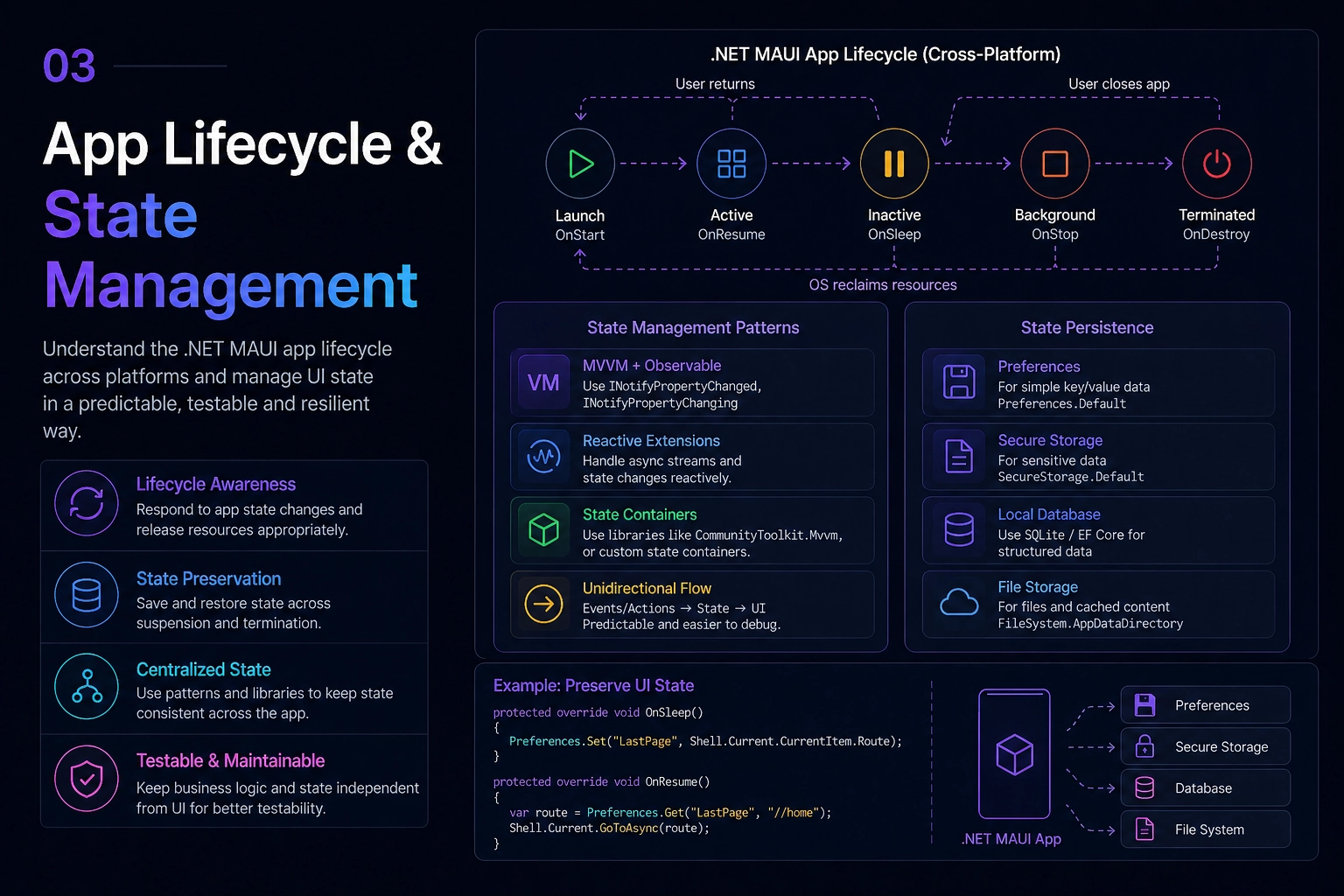
❓ Describe the .NET MAUI mobile app lifecycle. What are the key execution states, and how do you handle backgrounding, resuming, and termination?
.NET MAUI apps use the cross-platform Window lifecycle as the modern framing for mobile state. The main events are Created, Activated, Deactivated, Stopped, Resumed, Destroying, and Backgrounding on iOS and Mac Catalyst.
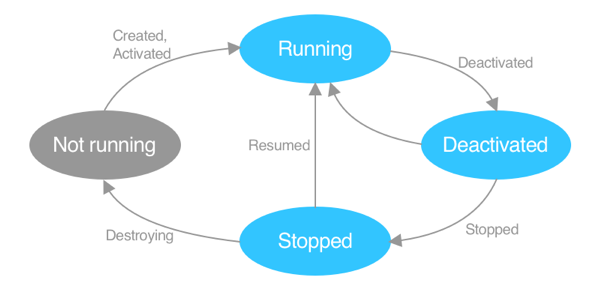
Handle lifecycle work by overriding CreateWindow in the App class and subscribing to the window events. Save critical state when the app is stopped because the OS can terminate a stopped process without another callback.
protected override Window CreateWindow(IActivationState activationState)
{
    Window window = base.CreateWindow(activationState);
    window.Resumed += (s, e) => { /* Refresh data, restore connections */ };
    window.Stopped += (s, e) => { /* Save state, release resources */ };
    window.Backgrounding += (s, e) => { e.State["key"] = "value"; }; // iOS/Mac Catalyst
    return window;
}
What .NET engineers should know:
- 👼 Junior: Know the cross-platform lifecycle events and that stopped apps can be killed by the OS.
- 🎓 Middle: Use
CreateWindowandConfigureLifecycleEventsto combine MAUI lifecycle events with platform-specific callbacks. - 👑 Senior: Design state management for unpredictable process death, backgrounding limits, resource cleanup, and fast resume behavior.
📚 Resources:
❓ How do you handle state preservation during app lifecycle events? Why is relying on the Window instance persistence unreliable?
Relying on a Window, page, or ViewModel instance to survive app backgrounding is unreliable because each platform can reclaim the process while it is stopped. Persist the state you need to recover: navigation route, form draft data, selected IDs, sync checkpoints, and small user preferences.
Use Preferences for simple non-sensitive values, SecureStorage for secrets, and SQLite or local files for larger structured state. Keep lifecycle handlers fast and avoid blocking I/O on the UI thread.
What .NET engineers should know:
- 👼 Junior: Save important state explicitly rather than assuming in-memory objects will still exist.
- 🎓 Middle: Serialize ViewModel state safely during
Stoppedor app-specific save points, then validate restored data on resume. - 👑 Senior: Build fault-tolerant restore flows that handle stale state, schema changes, interrupted sync, and platform differences between iOS and Android.
📚 Resources:
Navigation
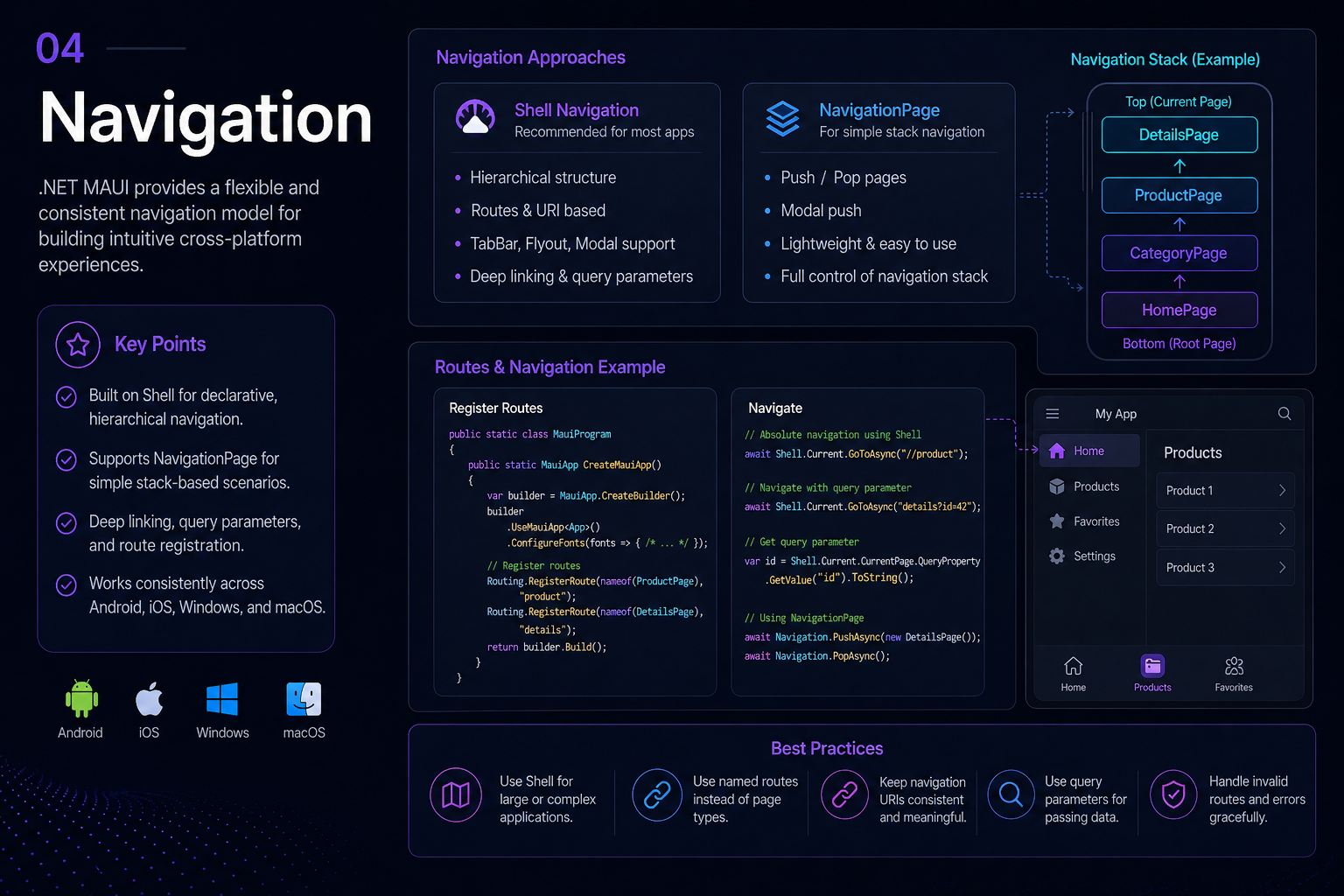
❓ What Shell navigation and which navigation options exist?
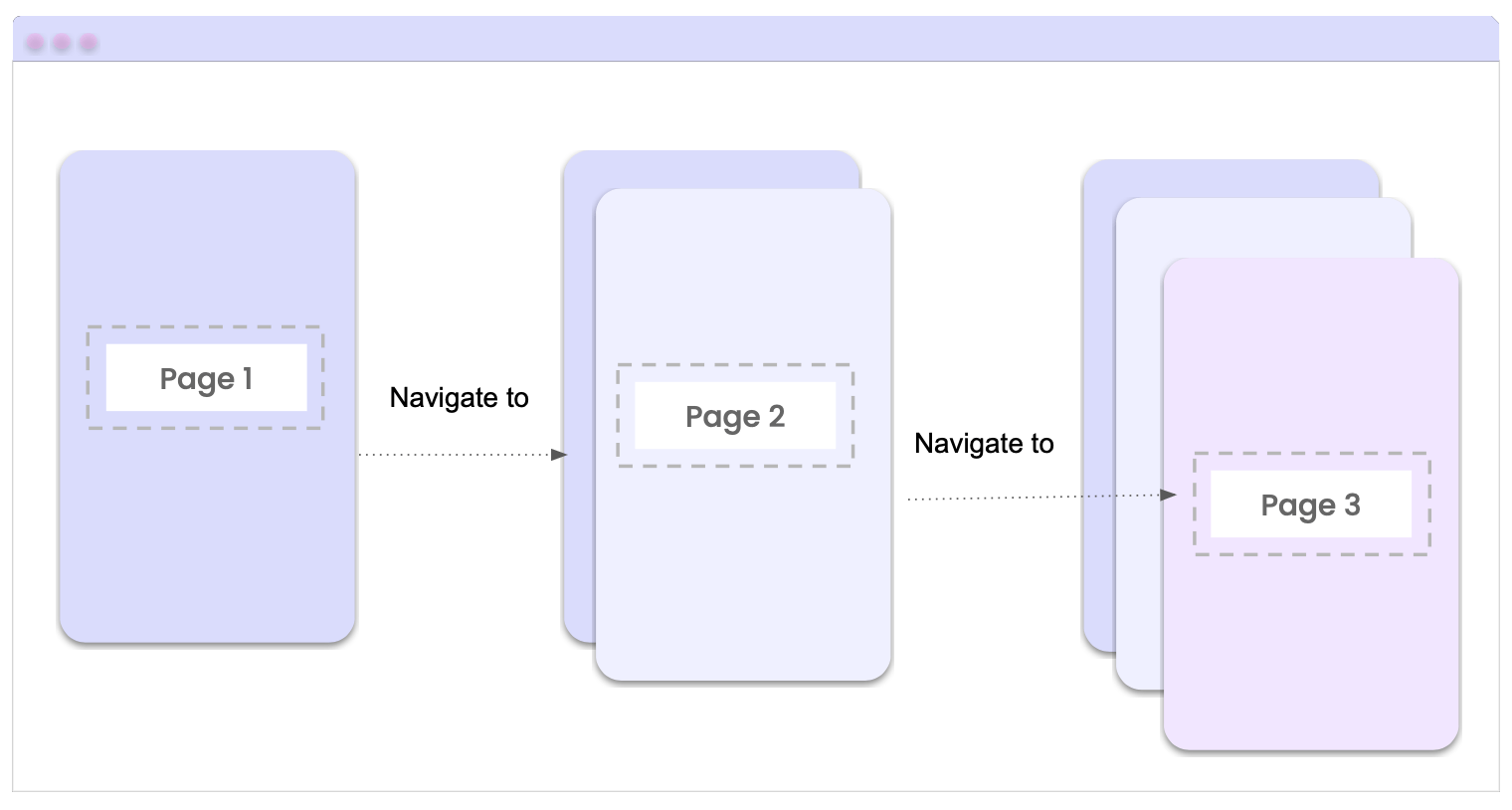
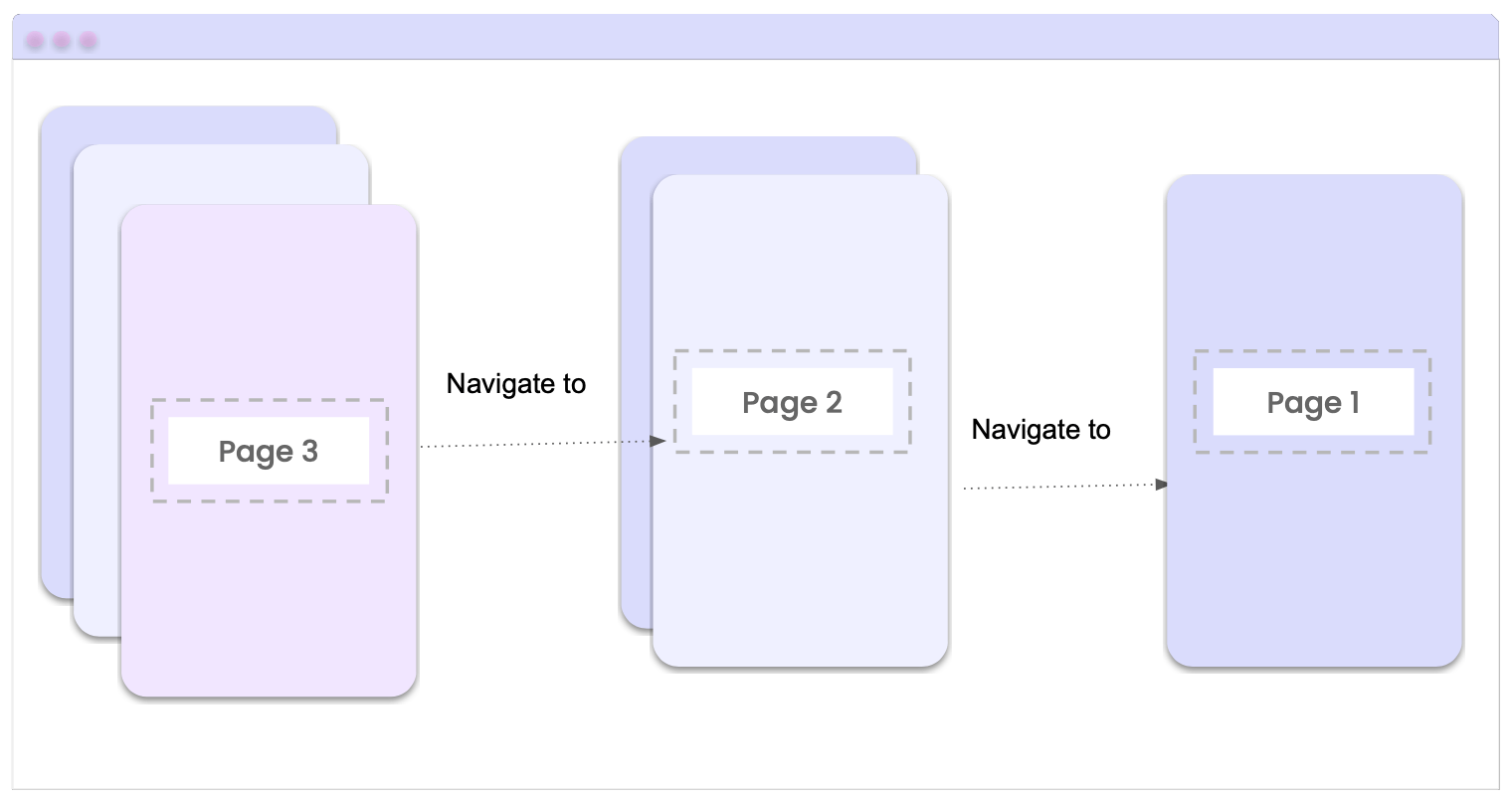
.NET MAUI Shell provides URI-based routing for moving between pages, tabs, flyout items, and registered detail pages. Use GoToAsync("route") for forward navigation, GoToAsync("..") for back navigation, and absolute routes such as //home when resetting the navigation stack.
Push: navigating to a detail page adds a page to the stack.
Pop: navigating back removes the active page and returns to the previous page.
What .NET engineers should know:
- 👼 Junior: Use
GoToAsync, register detail routes, and understand absolute versus relative routes. - 🎓 Middle: Pass data with route parameters or object parameters, use
IQueryAttributable, and cancel unsafe navigation when there are unsaved changes. - 👑 Senior: Plan route hierarchies because deep links, notifications, and external integrations can depend on those routes.
📚 Resources:
❓ Compare Shell navigation vs NavigationPage in .NET MAUI. When would you choose one over the other?
Shell provides URI routing, flyout and tab structure, deep-link-friendly navigation, search handlers, and route-based parameter passing. NavigationPage provides a traditional stack with PushAsync and PopAsync and can be useful for simple flows or migration scenarios that already depend on stack navigation.
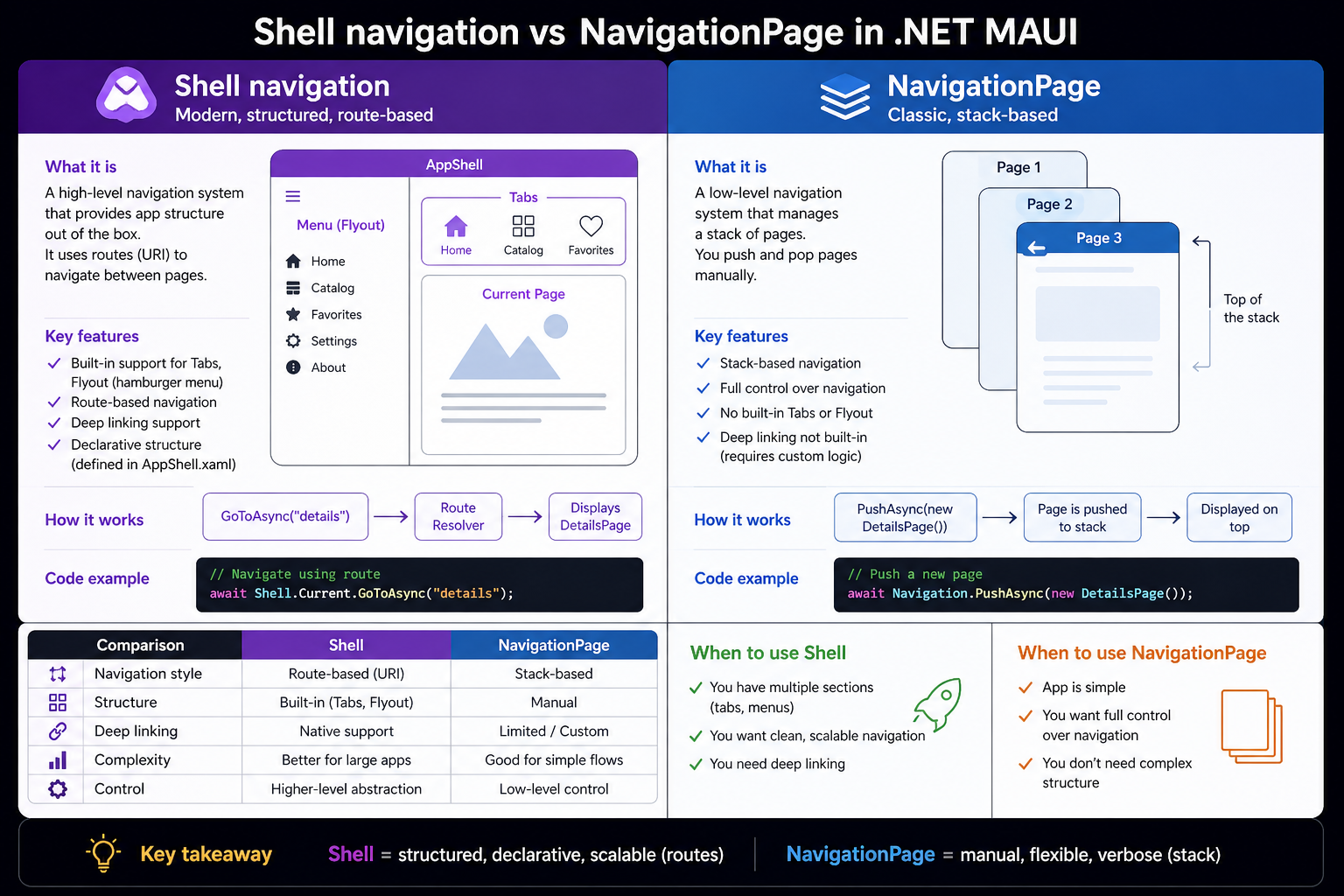
Choose Shell for most structured apps with tabs, flyouts, deep links, and URI routes. Choose NavigationPage for smaller stack-based apps, highly custom navigation, or legacy Xamarin.Forms migrations where Shell would add more disruption than value.
What .NET engineers should know:
- 👼 Junior: Shell is route-based;
NavigationPageis stack-based. - 🎓 Middle: Use Shell for app structure and deep links; use modal or stack navigation only where it fits a specific flow.
- 👑 Senior: Abstract navigation behind a testable service when ViewModels should not depend directly on Shell, and design route contracts before external integrations depend on them.
📚 Resources:
❓ How do you pass data between pages in .NET MAUI Shell navigation?
In .NET MAUI Shell, pass simple route values as URI query parameters and pass complex objects with object-based navigation data. Use URI query strings for stable identifiers such as details?id=5; avoid putting sensitive values or large object graphs into the URI because they can be logged, bookmarked, or reused from deep links.
await Shell.Current.GoToAsync("details", new ShellNavigationQueryParameters
{
    ["Product"] = selectedProduct
});
Receive navigation data with IQueryAttributable. It is preferred for trim-safe ViewModels because [QueryProperty] is not trim safe and should not be used with full trimming or Native AOT.
public partial class DetailViewModel : ObservableObject, IQueryAttributable
{
public void ApplyQueryAttributes(IDictionary<string, object> query)
{
if (query.TryGetValue("Product", out var value) &amp;amp;amp;amp;amp;amp;amp;amp;amp;amp;amp;amp;amp;amp;amp;amp;amp;amp;amp;amp;&amp;amp;amp;amp;amp;amp;amp;amp;amp;amp;amp;amp;amp;amp;amp;amp;amp;amp;amp;amp; value is Product product)
{
Product = product;
}
}
}Dictionary<string, object> parameters are retained for the lifetime of the destination page and can be delivered again when navigating back. ShellNavigationQueryParameters, added in .NET MAUI for .NET 8, is intended for single-use object navigation data and is cleared after navigation.
What .NET engineers should know:
- 👼 Junior: Use string query parameters for small route values and always
await Shell.Current.GoToAsync. - 🎓 Middle: Use
IQueryAttributablefor trim-safe parameter handling, and useShellNavigationQueryParametersfrom .NET 8 when object parameters should not persist on the navigation stack. - 👑 Senior: Choose between route IDs, object navigation data, shared state services, and persisted storage deliberately. Keep tokens and PII out of URI strings, avoid passing large objects when a stable ID is enough, and account for parameter lifetime to prevent stale data and memory retention.
📚 Resources:
Notifications & Deep Linking
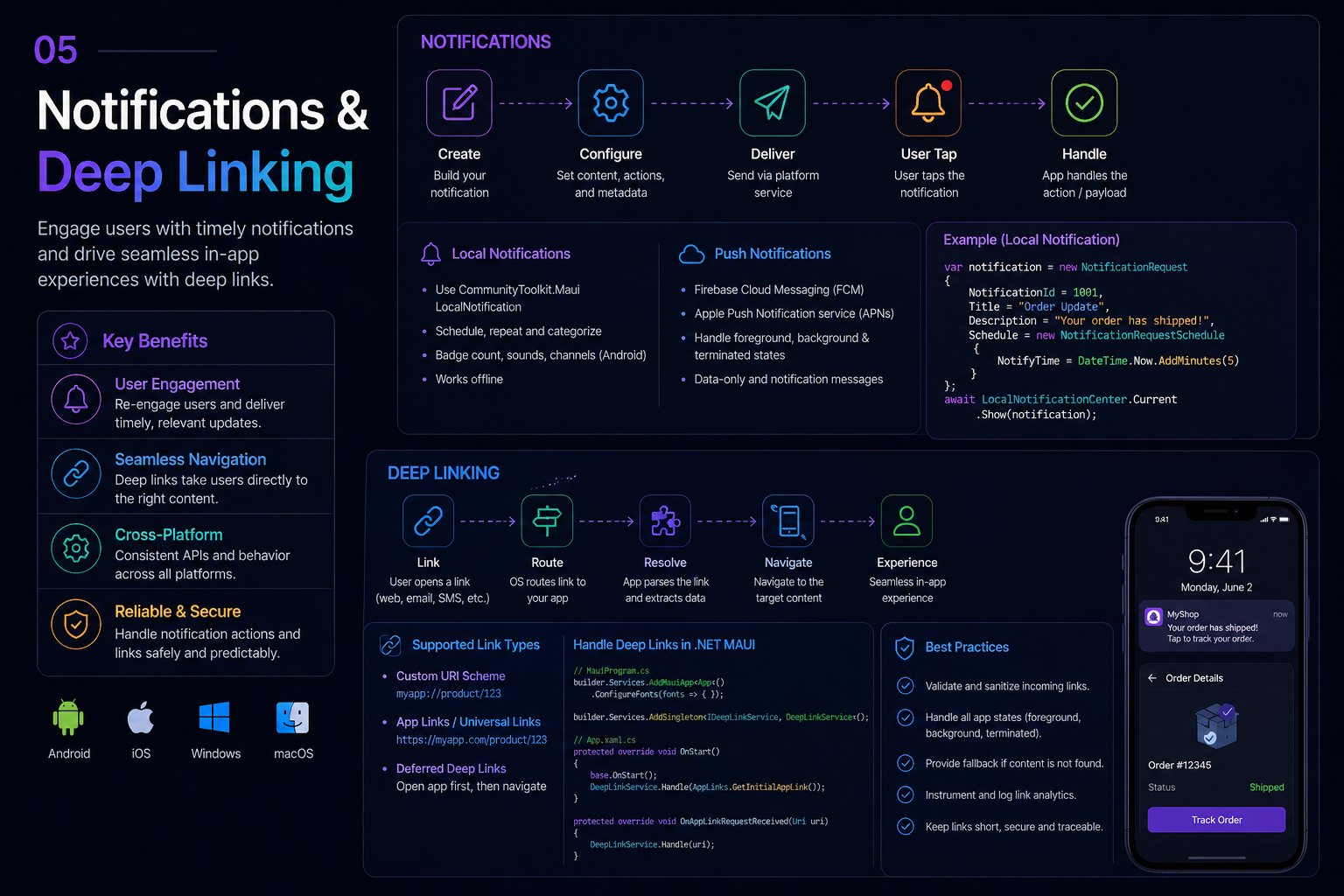
❓ How do you implement push notifications in a .NET MAUI app for both Android and iOS?
.NET MAUI does not include a single built-in push notification API. Production apps usually integrate platform push services through Firebase Cloud Messaging for Android, APNs for iOS, Azure Notification Hubs, or a maintained plugin such as Plugin.Firebase.
Android requires Firebase configuration such as google-services.json and notification permissions on newer API levels. iOS requires APNs certificates or keys, entitlements, and foreground/background notification handling. Notification taps should usually route into Shell or a navigation service with validated parameters.
CrossFirebaseCloudMessaging.Current.NotificationTapped += async (sender, e) =>
{
    await Shell.Current.GoToAsync(nameof(DetailsPage), new ShellNavigationQueryParameters
    {
        ["Notification"] = e.Notification
    });
};
What .NET engineers should know:
- 👼 Junior: Know the roles of FCM, APNs, certificates, entitlements, and permission prompts.
- 🎓 Middle: Register device tokens, handle token refresh, foreground messages, and tap-driven deep links.
- 👑 Senior: Design scalable notification backends, template payloads, delivery analytics, privacy controls, and fallback behavior when delivery is delayed or denied.
📚 Resources:
❓ How do you implement local notifications in .NET MAUI?
Local notifications are scheduled by the app on the device and are useful for reminders, calendar-like events, and local status alerts. MAUI apps typically expose a shared notification interface and provide per-platform implementations, or use a maintained plugin when its platform coverage matches the product requirements.
Android requires notification channels and runtime notification permission on Android 13+. iOS requires notification authorization and careful handling of categories, actions, and foreground presentation.
What .NET engineers should know:
- 👼 Junior: Understand the difference between push notifications from a server and local notifications scheduled on the device.
- 🎓 Middle: Create Android channels, request iOS authorization, handle notification taps, and cancel or reschedule notifications when user settings change.
- 👑 Senior: Coordinate local notifications with sync state, user preferences, time zones, background execution limits, and platform policy constraints.
📚 Resources:
❓ How would you implement deep linking / app links in a .NET MAUI application?
Deep linking lets an app respond to external URIs and navigate to specific content. Use Android App Links or intent filters, iOS Universal Links, and optional custom URI schemes when appropriate. In Shell apps, map the incoming URI to registered routes and pass only validated, minimal parameters.
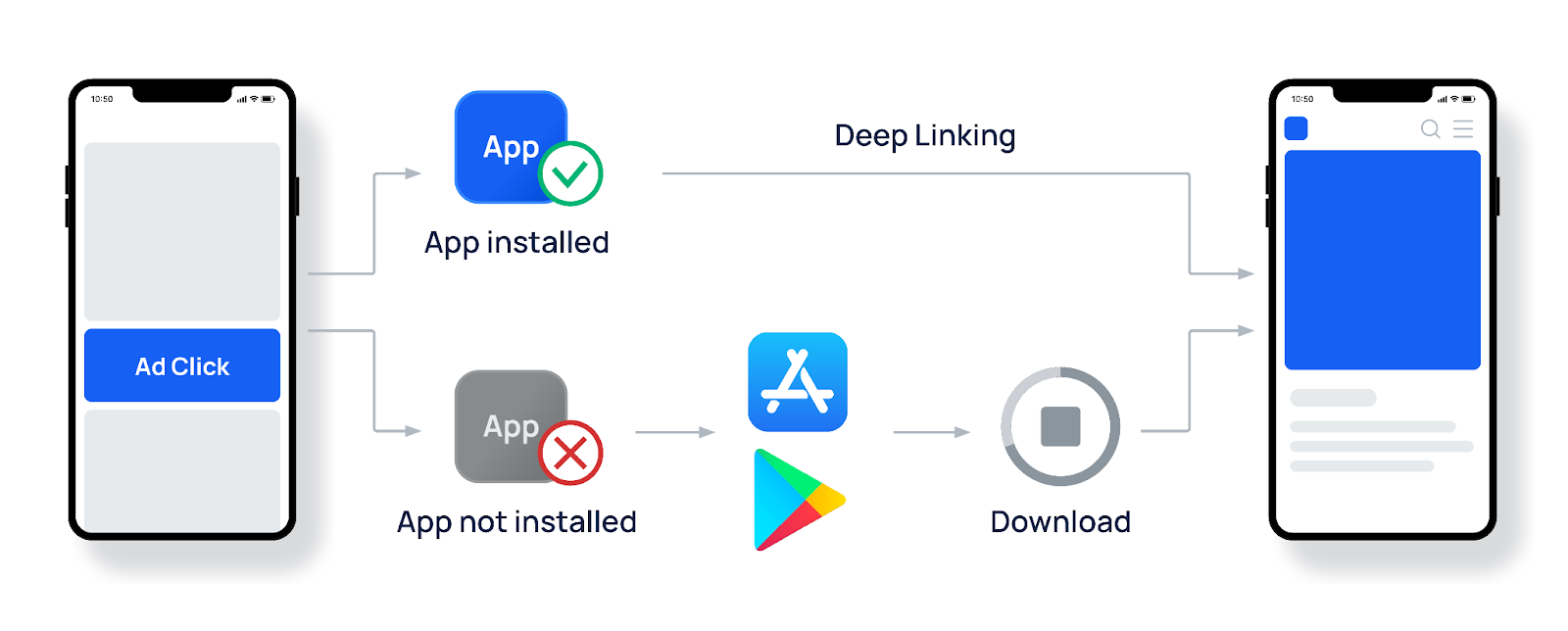
await Shell.Current.GoToAsync("//details?id=123");What .NET engineers should know:
- 👼 Junior: Know that deep links open the app to a specific route or item.
- 🎓 Middle: Configure Android intent filters, iOS associated domains, route registration, and cold-start handling.
- 👑 Senior: Validate and sanitize incoming URIs, handle authentication gates, analytics, and links arriving while the app is already running.
📚 Resources:
UI: Layouts, Gestures, Lists & Graphics
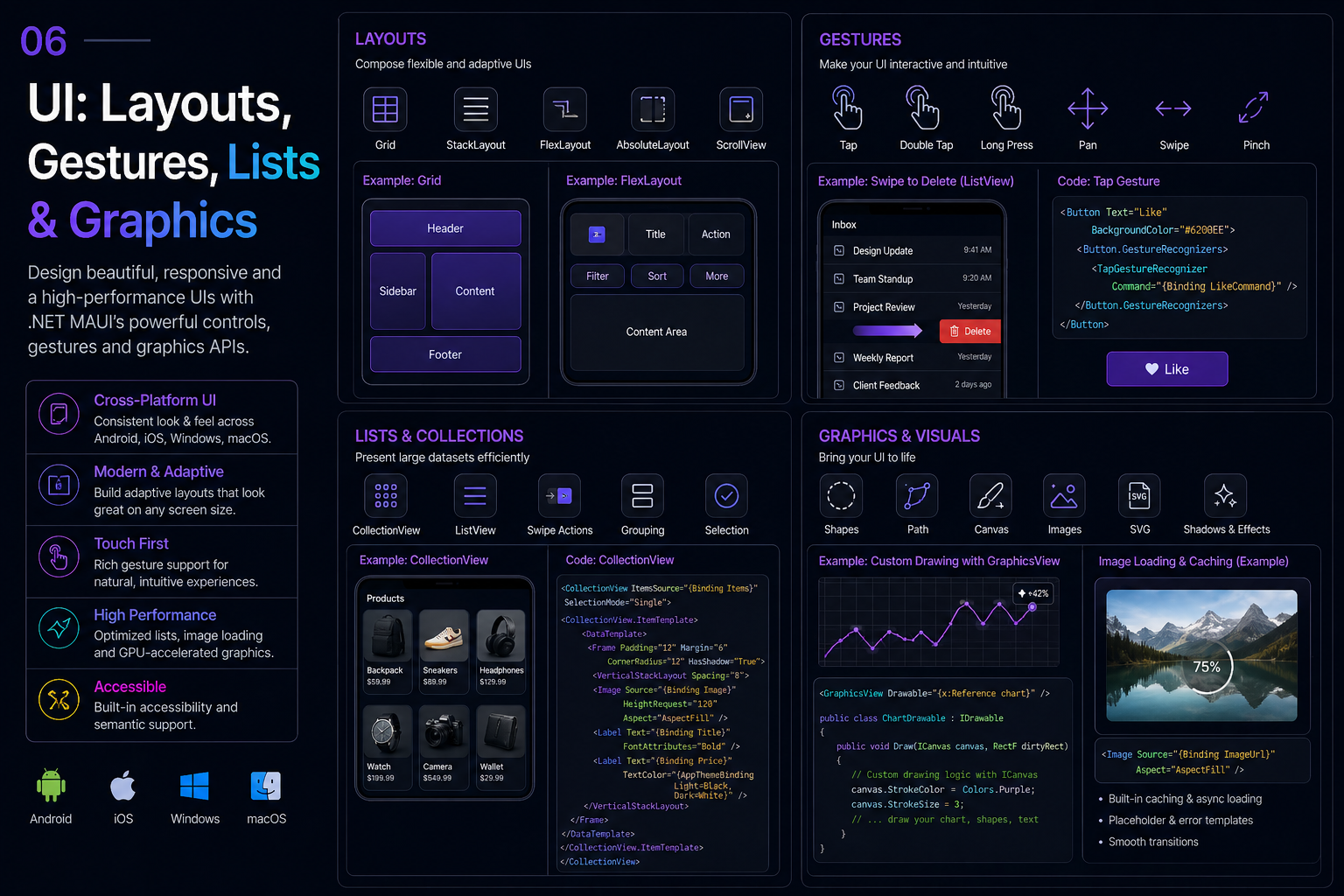
❓ What should you know about SafeAreaEdges, gestures, CollectionView, and CarouselView in .NET 10?
These are core UI building blocks in modern MAUI apps, and in .NET 10, they continue to shape how production mobile UIs are built.
SafeAreaEdges controls how content respects device safe areas such as notches, status bars, navigation bars, and rounded screen corners. Instead of manually padding pages for each platform, MAUI lets pages or layouts specify how to avoid unsafe regions.
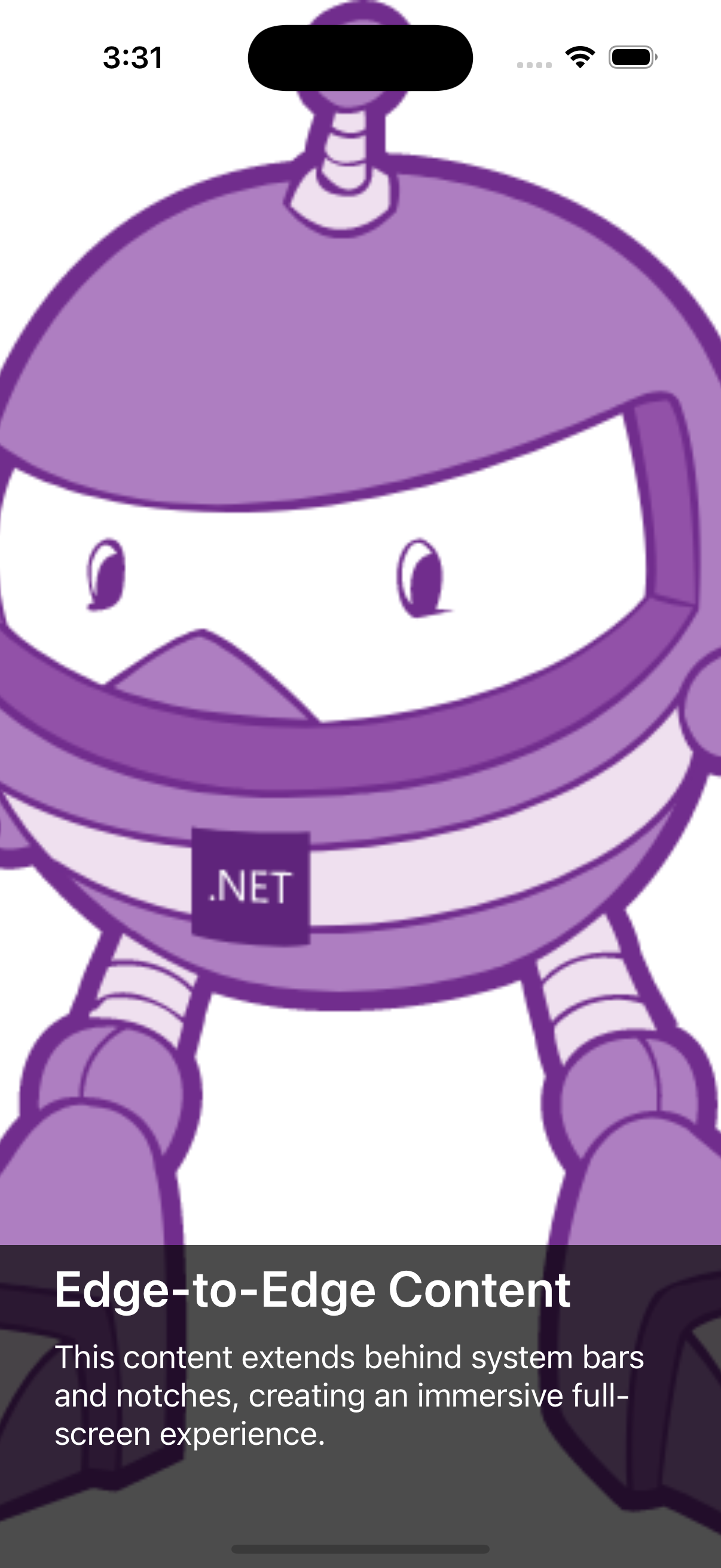
<ContentPage SafeAreaEdges="All">
    <VerticalStackLayout>
        <Label Text="Safe area aware content" />
    </VerticalStackLayout>
</ContentPage>
Gestures add touch interactions beyond simple button taps. Tap, pan, pinch, swipe, and drag gestures can be attached to almost any visual element, which makes them useful for custom interactions without building native controls.
<Image Source="photo.png">
    <Image.GestureRecognizers>
        <TapGestureRecognizer Command="{Binding OpenPhotoCommand}" />
    </Image.GestureRecognizers>
</Image>
CollectionView is MAUI’s primary control for rendering scrollable lists. It replaces older controls like ListView for most scenarios and supports virtualization, templates, selection, grouping, and multiple layouts.
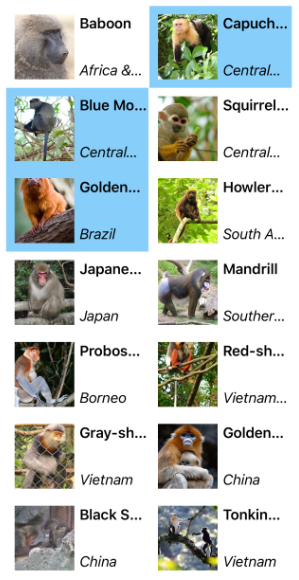
<CollectionView ItemsSource="{Binding Products}">
    <CollectionView.ItemTemplate>
        <DataTemplate>
            <Label Text="{Binding Name}" />
        </DataTemplate>
    </CollectionView.ItemTemplate>
</CollectionView>
CarouselView builds on similar concepts but presents horizontally or vertically swipeable paged content. It is commonly used for onboarding flows, galleries, banners, or wizard-style screens.
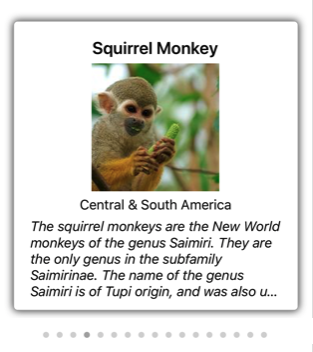
<CarouselView ItemsSource="{Binding Slides}">
    <CarouselView.ItemTemplate>
        <DataTemplate>
            <Label Text="{Binding Title}" />
        </DataTemplate>
    </CarouselView.ItemTemplate>
</CarouselView>
Together, these APIs cover much of everyday mobile UI work: safe layouting, touch interaction, list rendering, and paged/swipe navigation.
What .NET engineers should know:
- 👼 Junior:
SafeAreaEdgesprevents content from overlapping device notches and system UI;CollectionViewis the default list control in MAUI. - 🎓 Middle: Gestures enable richer touch UX, and
CarouselViewis useful for paged/swipe-based interfaces like onboarding and galleries. - 👑 Senior: Real-world MAUI performance often depends on how
CollectionViewand gesture-heavy layouts are designed—poor templates, nested scroll views, or complex gesture trees can hurt responsiveness fast.
❓ What gesture recognizers does .NET MAUI support, and how do you handle complex touch interactions?
.NET MAUI provides a set of built-in gesture recognizers that cover the most common mobile and desktop interactions. For more complex scenarios, such as drawing or multi-touch tracking, you must go beyond these and use platform-specific events or specialized effects.
Supported Gesture Recognizers
There are seven primary gesture recognizers in .NET MAUI:
TapGestureRecognizer: Detects single, double, or multi-taps.PinchGestureRecognizer: Detects two-finger "pinch" gestures, typically used for zooming.PanGestureRecognizer: Tracks the movement of fingers across the screen (scrolling or dragging within a view).SwipeGestureRecognizer: Detects a quick motion in a specific direction (Up, Down, Left, Right).DragGestureRecognizer: Initiates a drag-and-drop operation.DropGestureRecognizer: Identifies a valid target for a drag-and-drop operation.PointerGestureRecognizer: Specifically for desktop/tablet, detecting pointer hover, enter, exit, and move events.
Example: Using PanGestureRecognizer to track movement
var panGesture = new PanGestureRecognizer();
panGesture.PanUpdated += (s, e) => {
    switch (e.StatusType) {
        case GestureStatus.Running:
            // Translate the element based on the 'TotalX' and 'TotalY' deltas
            myElement.TranslationX = e.TotalX;
            myElement.TranslationY = e.TotalY;
            break;
        case GestureStatus.Completed:
            // Logic for when the user releases the touch
            break;
    }
};
myElement.GestureRecognizers.Add(panGesture);
What .NET engineers should know:
- 👼 Junior: Identify the standard recognizers and know how to attach them in XAML. Understand the difference between a
Button.Clickedevent and aTapGestureRecognizer(which can be applied to anyViewlike aLabelorImage). - 🎓 Middle: Use
GetPosition()(introduced in .NET MAUI) to find exactly where a tap occurred relative to an element. MasterPanandPinchdeltas to implement custom UI transformations (like photo cropping) and understand how to prevent gesture bubbling in nested layouts. - 👑 Senior: Design custom touch-tracking logic using Platform Effects or Handlers for high-performance interactions (e.g., a gaming joystick or drawing canvas). Solve "Gesture Conflicts" (e.g., a horizontal swipe inside a vertical ScrollView) and ensure accessibility by providing button-based alternatives for complex multi-finger gestures.
📚 Resources:
❓ How do you implement pull-to-refresh and swipe actions in .NET MAUI?
Pull-to-refresh: Wrap a CollectionView in RefreshView:
<RefreshView IsRefreshing="{Binding IsRefreshing}" Command="{Binding RefreshCommand}">
    <CollectionView ItemsSource="{Binding Items}" />
</RefreshView>
Set IsRefreshing = false in a finally block so failed refreshes do not leave the spinner running.
[RelayCommand]
private async Task RefreshAsync()
{
    try
    {
        await LoadAsync();
    }
    finally
    {
        IsRefreshing = false;
    }
}
Swipe actions on list items: Use SwipeView inside CollectionView.ItemTemplate:
<SwipeView>
    <SwipeView.RightItems>
        <SwipeItems Mode="Execute">
            <SwipeItem Text="Delete" BackgroundColor="Red"
                       Command="{Binding Source={...}, Path=DeleteCommand}"
                       CommandParameter="{Binding}"/>
        </SwipeItems>
    </SwipeView.RightItems>
    <Grid Padding="10"><Label Text="{Binding Title}"/></Grid>
</SwipeView>
Supports LeftItems, RightItems, TopItems, BottomItems. Mode can be Reveal (shows buttons) or Execute (auto-executes on full swipe).
What .NET engineers should know:
- 👼 Junior: Recognize that
RefreshViewonly works with scrollable children, and always resetIsRefreshingwhen the refresh operation completes. - 🎓 Middle: Use
SwipeView,SwipeItems,Mode,Threshold, andCommandParameterdeliberately so list actions route to the correct ViewModel command. - 👑 Senior: Design refresh and swipe behavior around offline state, sync conflicts, platform guidelines, accessibility, real-device testing, and custom interactions when the built-in
SwipeViewis not enough.
📚 Resources:
❓ Compare CollectionView vs. ListView in .NET MAUI. What are the key performance differences?
While both controls are used to display lists of data, CollectionView is the modern, more flexible successor to the legacy ListView. In fact, as of .NET 10, ListView and its related cell types are officially marked as obsolete, making CollectionView the primary choice for all new development.

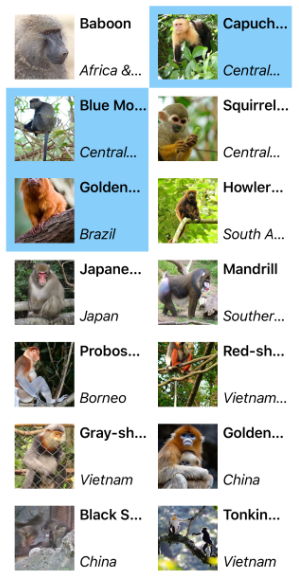
CollectionView advantages: Flexible layouts, including vertical/horizontal lists and grids (ItemsLayout="VerticalGrid, 2"), no cell concept (uses DataTemplate directly with less overhead), built-in virtualization via native controls (RecyclerView on Android, UICollectionView on iOS), and native single/multiple selection support.
Performance best practices:
- Never wrap CollectionView in ScrollView — destroys virtualization, renders all items
- Use
ItemSizingStrategy="MeasureFirstItem"to avoid per-item layout recalculation - Keep item templates lightweight — minimize nesting and complex layouts
- Use compiled bindings (
x:DataType) to avoid Reflection-based binding resolution - Place in
Gridwith*row height, notStackLayout - Use
ObservableRangeCollectionfor batch updates instead of individual adds
Known issue: CollectionView on Android has historically had scrolling jank with complex templates. .NET 10 includes major improvements, with optimized handlers as the default on iOS/Mac Catalyst.
What .NET engineers should know:
- 👼 Junior: CollectionView is the recommended list control; it supports flexible layouts, virtualization, and improved performance over the older ListView. ListView uses cells and lacks virtualization control, making it less performant for large lists
- 🎓 Middle: Avoid wrapping CollectionView in ScrollView; set ItemSizingStrategy to MeasureFirstItem; keep templates lightweight and use compiled bindings. Understand virtualization differences across platforms and how to optimize item templates
- 👑 Senior: Evaluate the trade-offs of .NET 10 deprecation; existing
ListViewcode should be audited for migration. Recognize that whileCollectionViewis more performant, it can still lag with highly complexDataTemplates(e.g., deeply nested Grids); in these cases, use MAUI compiled bindings withx:DataTypeand simplify the template to ensure the UI thread remains responsive during rapid scrolling. For desktop-specific performance, leveragePointerGestureRecognizerto handle hover states efficiently within list items.
📚 Resources:
❓ How do you build responsive layouts for different mobile screen sizes in .NET MAUI?
Multiple techniques work together. Use Grid with proportional (*) sizing and FlexLayout for wrapping. Apply OnIdiom/OnPlatform markup extensions:
<Label FontSize="{OnIdiom Phone=14, Tablet=18}"/>
<Grid Padding="{OnPlatform iOS='0,20,0,0', Android='0'}"/>
Use Visual State Manager with OrientationStateTrigger for orientation changes. Check DeviceDisplay.MainDisplayInfo.Width, .Density, and .Orientation at runtime. Use SVG vector images for resolution independence. Apply ios:Page.UseSafeArea="True" for notched iOS devices. Use FlexLayout with Wrap="Wrap" for content that should reflow based on available space.
What .NET engineers should know:
- 👼 Junior: Use Grid and FlexLayout with proportional sizes and wrapping; apply OnIdiom and OnPlatform to adjust fonts and paddings. Ensure safe areas and use the Visual State Manager for orientation changes
- 🎓 Middle: Measure device display using
DeviceDisplay.MainDisplayInfo;use vector images and FlexLayout for dynamic wrapping; handle orientation changes gracefully. Use Visual State Manager triggers and design for multiple device classes (phone/tablet) - 👑 Senior: Architect UI with breakpoints and adaptive design patterns; support foldable and large screens; optimize for accessibility and localization. Implement responsive behaviors using orientation triggers, adaptive layout patterns, and testing across devices
📚 Resources: CollectionView
❓ How do you implement MAUI Graphics for custom drawing on mobile?
MAUI Graphics (Microsoft.Maui.Graphics) is a cross-platform drawing API that abstracts Skia, CoreGraphics, Direct2D, and Canvas2D behind a unified ICanvas interface. Custom drawing is implemented by creating a class that implements IDrawable, then hosting it in a GraphicsView control in XAML. The drawable receives an ICanvas and RectF bounds on every draw call — no platform-specific drawing code needed.
The ICanvas API covers primitives (lines, rectangles, ellipses, paths), fills, strokes, gradients, images, and text. Drawing is stateful — stroke color, fill color, font, and transform are set on the canvas before drawing commands, similar to HTML5 Canvas or Skia's paint model.
Example of a custom gauge drawable:
public class GaugeDrawable : IDrawable
{
    public float Value { get; set; } // 0.0 to 1.0

    public void Draw(ICanvas canvas, RectF bounds)
    {
        var cx = bounds.Width / 2;
        var cy = bounds.Height / 2;
        var radius = Math.Min(cx, cy) - 10;

        // Background arc
        canvas.StrokeColor = Colors.LightGray;
        canvas.StrokeSize = 12;
        canvas.DrawArc(cx - radius, cy - radius,
            radius * 2, radius * 2, 180, 0, false, false);

        // Value arc
        canvas.StrokeColor = Colors.DodgerBlue;
        canvas.StrokeSize = 12;
        canvas.DrawArc(cx - radius, cy - radius,
            radius * 2, radius * 2, 180, Value * 180, false, false);

        // Label
        canvas.FontSize = 24;
        canvas.FontColor = Colors.Black;
        canvas.DrawString($"{Value:P0}", bounds, HorizontalAlignment.Center,
            VerticalAlignment.Center);
    }
}
Example of hosting the drawable in XAML and triggering redraws from a ViewModel:
<GraphicsView x:Name="GaugeView"
              Drawable="{Binding Gauge}"
              HeightRequest="200"
              WidthRequest="200" />
public partial class DashboardViewModel : ObservableObject
{
public GaugeDrawable Gauge { get; } = new();
[ObservableProperty]
private float _progress;
partial void OnProgressChanged(float value)
{
Gauge.Value = value;
// Trigger redraw on UI thread
MainThread.BeginInvokeOnMainThread(() =>
Application.Current?.Dispatcher.Dispatch(
() => GaugeView?.Invalidate()));
}
}For animations, invalidate the GraphicsView on a timer or in response to data changes. MAUI Graphics does not have a built-in animation loop — for frame-rate animations combine Invalidate() with a PeriodicTimer or Task.Delay loop on a background thread dispatched to the UI thread.
What .NET engineers should know:
- 👼 Junior: Implement
IDrawablewith aDraw(ICanvas, RectF)method and assign it to aGraphicsView— callGraphicsView.Invalidate()whenever the visual state changes to trigger a redraw. - 🎓 Middle: Canvas state is cumulative within a draw call — use
canvas.SaveState()andcanvas.RestoreState()to isolate transform and style changes to specific drawing operations, and avoid allocating objects insideDraw()since it's called on every frame. - 👑 Senior: For complex or animated drawables, profile rendering cost per frame using platform tools — heavy path calculations or text measurement inside
Draw()compound on every invalidation. Pre-compute paths, cache measured text bounds, and consider offloading complex geometry calculations to a background thread, passing results to the drawable via a snapshot object to keep draw calls fast.
📚 Resources:
Accessibility & Localization
❓ How do you implement mobile accessibility (a11y) in .NET MAUI?
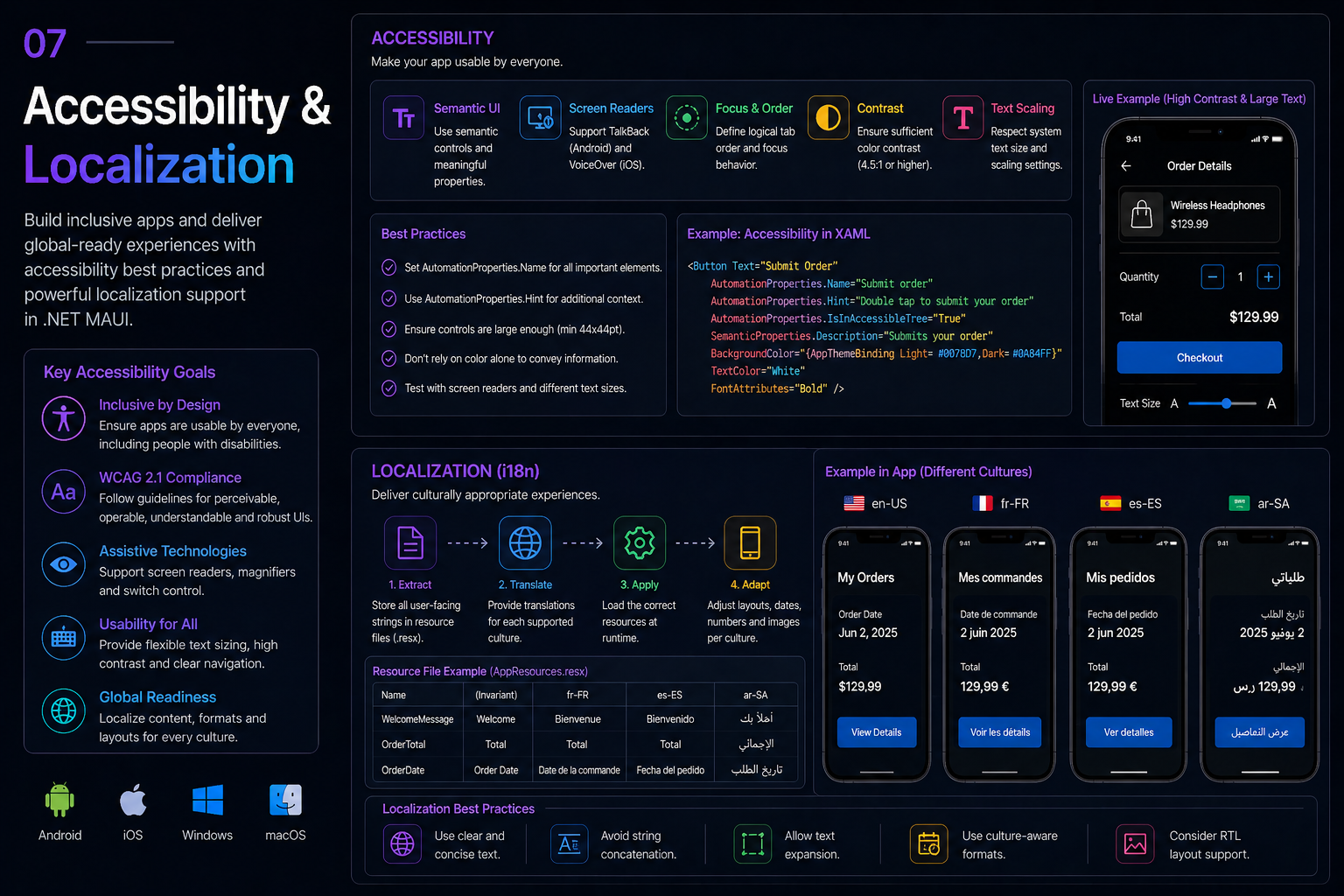
Accessibility in .NET MAUI is primarily handled through Semantic Properties, which map cross-platform XAML attributes to native accessibility APIs like TalkBack (Android) and VoiceOver (iOS). Instead of building platform-specific logic, developers use a unified set of properties to describe UI intent.
Example: MAUI SemanticProperties for screen reader support:
<Button Text="Submit"
        SemanticProperties.Hint="Submits the form"
        SemanticProperties.Description="Submit button"/>
<Image Source="logo.png" SemanticProperties.Description="Company logo"/>
Key practices include setting SemanticProperties.Description on all interactive and meaningful visual elements, using SemanticProperties.HeadingLevel for page structure, ensuring 4.5:1 color contrast ratios for text, maintaining minimum touch target sizes (44×44pt iOS, 48×48dp Android), testing with VoiceOver (iOS) and TalkBack (Android) on real devices, and using SemanticScreenReader.Announce("Item deleted") for dynamic announcements. Note that AutomationId is for UI testing, not accessibility.
What .NET engineers should know:
- 👼 Junior: Set
SemanticProperties.Description,Hint, and heading levels on meaningful UI, and keep color contrast and touch targets accessible. - 🎓 Middle: Use
SemanticScreenReader.Announce, test with VoiceOver and TalkBack, keep focus order logical, and make custom controls reachable by assistive technologies. - 👑 Senior: Design inclusive flows across locales and disability needs, implement platform-specific accessibility behavior through handlers when necessary, and treat accessibility testing as part of release readiness.
📚 Resources:
❓ How do localization, globalization, and right-to-left layouts work in MAUI?
Localization in MAUI uses the standard .NET resource file approach — .resx files per language, accessed through a generated strongly-typed class. Globalization covers number, date, and currency formatting using CultureInfo. Right-to-left layout support is handled by the platform but requires explicit opt-in, either per page or app-wide. All three concerns are distinct but often need to work together in international apps.
Localization with .resx files:
The pattern is the same as any .NET app — create a base Resources.resx and language-specific variants like Resources.ar.resx, Resources.fr.resx. MAUI reads the device's current culture and automatically resolves the correct file.
Resources/
  Strings/
    AppResources.resx          ← default (English)
    AppResources.ar.resx       ← Arabic
    AppResources.fr.resx       ← French
    AppResources.de.resx       ← German
Resource file example:
<!-- AppResources.resx -->
<data name="WelcomeMessage">
  <value>Welcome to the app</value>
</data>
<data name="LoginButton">
  <value>Sign In</value>
</data>

<!-- AppResources.ar.resx -->
<data name="WelcomeMessage">
  <value>مرحباً بك في التطبيق</value>
</data>
<data name="LoginButton">
  <value>تسجيل الدخول</value>
</data>
Usage example:
var title = AppResources.WelcomeMessage;Globalization means the app respects culture-specific formatting rules for dates, numbers, and currencies. MAUI uses the current .NET culture, so formatting automatically adapts when standard formatters are used.
var price = total.ToString("C", CultureInfo.CurrentCulture);Right-to-left (RTL) layouts are supported through FlowDirection. When set to RightToLeft, MAUI mirrors layout alignment and flow for RTL languages such as Arabic or Hebrew.
<ContentPage FlowDirection="RightToLeft">
    <Label Text="{x:Static resx:AppResources.WelcomeMessage}" />
</ContentPage>
In production apps, localization is more than translated strings. Layouts, icons, padding, navigation flow, and images may all need adjustment for RTL cultures.
What .NET engineers should know:
- 👼 Junior: MAUI uses
.resxfiles for localized strings andFlowDirectionfor RTL support. - 🎓 Middle: Globalization includes formatting dates, numbers, and currencies correctly for the active culture—not just translating text.
- 👑 Senior: Proper internationalization requires designing layouts, assets, and UX flows for RTL from the start; retrofitting RTL later is expensive and error-prone.
📚 Resources: MAUI Localization
Hardware, Permissions & Background Work
❓ How does .NET MAUI handle app permissions? What are the best practices?
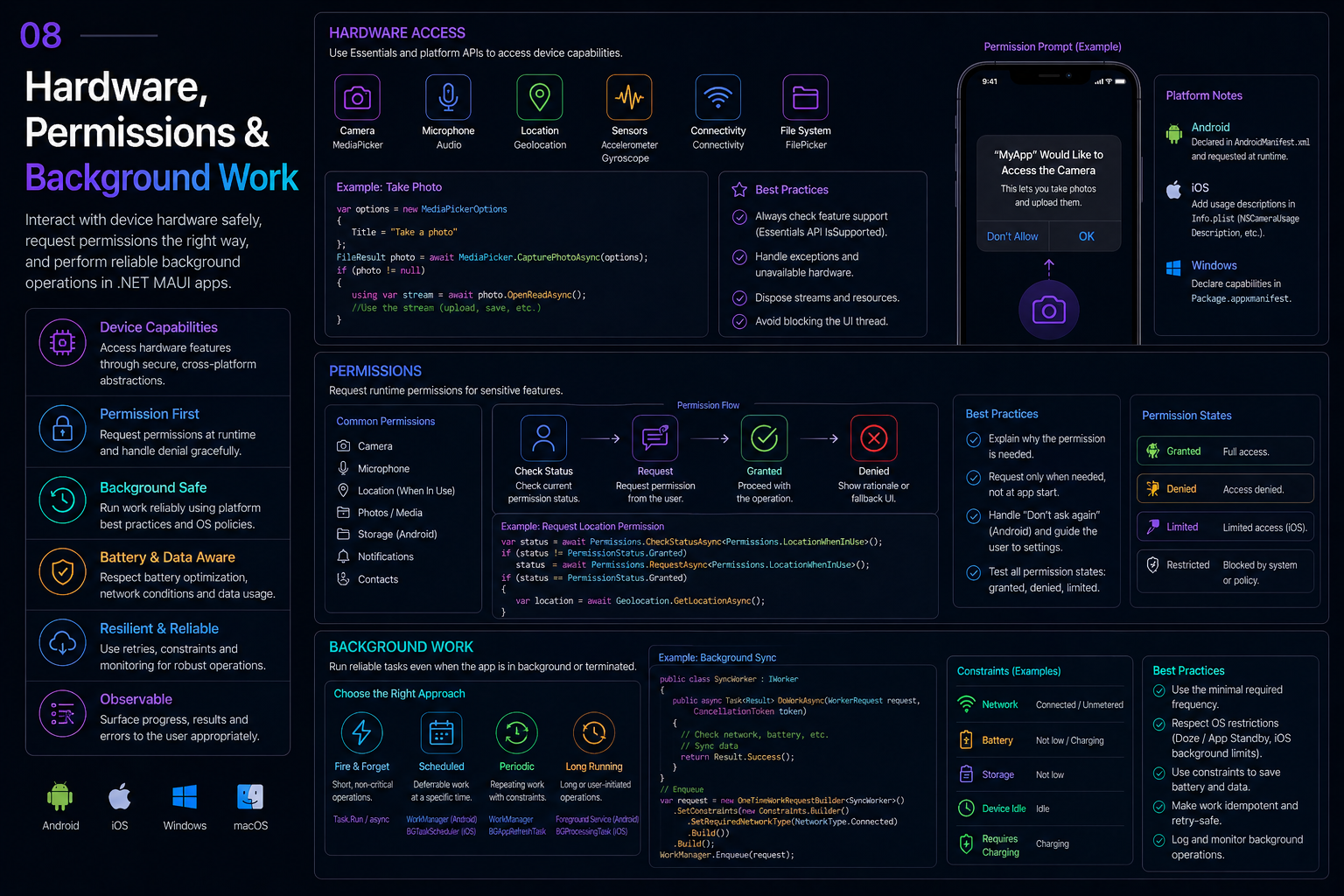
The Permissions class in Microsoft.Maui.ApplicationModel provides cross-platform permission handling:
var status = await Permissions.CheckStatusAsync<Permissions.LocationWhenInUse>();
if (status != PermissionStatus.Granted)
    status = await Permissions.RequestAsync<Permissions.LocationWhenInUse>();
Best practices: Never request at startup; wait until the feature is actually needed. Check ShouldShowRationale and show an educational dialogue first. Handle denial gracefully. After the user denies twice on Android, the system won’t prompt again, so guide them to Settings. Always declare in manifests: iOS needs Info.plist descriptions (NSCameraUsageDescription); Android needs AndroidManifest.xml entries. Missing declarations cause crashes or App Store rejection. Note: StorageRead/Write always returns Granted on Android API 33+ since those permissions were deprecated.
What .NET engineers should know:
- 👼 Junior: Use
Permissions.CheckStatusAsyncandRequestAsync, request permissions only when needed, and declare them inInfo.plistandAndroidManifest.xml. - 🎓 Middle: Use
ShouldShowRationale, handle denied and permanently denied states, guide users to Settings when needed, and account for platform differences such as Android API 33+ storage permission behavior. - 👑 Senior: Centralize permission flows behind testable services, design privacy-preserving fallbacks, and handle multi-permission feature gates without blocking unrelated app functionality.
📚 Resources:
❓ How do you access the camera and GPS in .NET MAUI?
In .NET MAUI, hardware features like the camera and GPS are accessed through platform-integration APIs such as MediaPicker and Geolocation. They provide a cross-platform surface, but permissions and platform manifest declarations still matter.
// Camera
var photo = await MediaPicker.Default.CapturePhotoAsync();

if (photo is not null)
{
    await using var stream = await photo.OpenReadAsync();
    // Upload, decode, or persist the stream.
}

// GPS
var request = new GeolocationRequest(
    GeolocationAccuracy.Medium,
    TimeSpan.FromSeconds(10));

var location = await Geolocation.Default.GetLocationAsync(request);
What .NET engineers should know:
- 👼 Junior: Understand that .NET MAUI provides a unified API (
MediaPickerandGeolocation) so you don't have to write separate code for each OS. Know that you must declare permissions in theAndroidManifest.xmlandInfo.plistfiles, or the app will crash when calling these methods. - 🎓 Middle: Use
Permissions.RequestAsync<Permissions.LocationWhenInUse>()to check and request permissions at runtime before calling the hardware API. Understand the impact ofGeolocationAccuracyon battery life—don't useHighaccuracy ifMediumorLowis sufficient for the use case. - 👑 Senior: Design a "Service-Oriented" architecture where hardware APIs are abstracted behind interfaces (e.g.,
ICameraService). This allows you to mock the camera or GPS during unit testing or when running the app in an emulator that doesn't support those features. Handle edge cases like "Location Services Disabled" or "User Denied Permission Permanently" by providing clear UI guidance to the device settings.
📚 Resources:
❓ How do you implement biometric authentication (Face ID, Touch ID, fingerprint) in .NET MAUI?
No built-in API exists. In .NET MAUI, biometric authentication is typically implemented via a Plugin.Fingerprint or Plugin.Maui.Biometric NuGet packages. Since biometric hardware is highly platform-specific, these libraries provide a cross-platform abstraction that triggers the native OS dialogs (BiometricPrompt on Android and LocalAuthentication on iOS).
Before writing C# code, you must configure the platform-specific permissions.
Android: In Platforms/Android/AndroidManifest.xml, add:
<uses-permission android:name="android.permission.USE_BIOMETRIC" />Note: In MainActivity.cs, you must also initialize the resolver: CrossFingerprint.SetCurrentActivityResolver(() => this);
iOS: In Platforms/iOS/Info.plist, add the description for Face ID:
<key>NSFaceIDUsageDescription</key>
<string>We need your face to unlock your secure data.</string>
Using Plugin.Fingerprint, the flow involves checking for availability and then requesting authentication.
public async Task AuthenticateUserAsync()
{
    var fp = CrossFingerprint.Current;

    // 1. Check if the device supports any form of biometrics
    bool isAvailable = await fp.IsAvailableAsync();
    if (!isAvailable) return;

    // 2. Configure the request
    var request = new AuthenticationRequestConfiguration("Login", "Authenticate to access your account");

    // 3. Trigger the OS-native dialog
    var result = await fp.AuthenticateAsync(request);

    if (result.Authenticated)
    {
        // Success: Proceed with login logic
    }
    else
    {
        // Failure: Handle "Canceled", "Denied", or "Locked Out"
    }
}
What .NET engineers should know:
- 👼 Junior: Understand that you do not "read" the fingerprint data yourself; the OS handles the scan and simply returns a
true/falseresult. Know how to check for hardware availability before showing a "Login with FaceID" button to avoid crashes on older devices. - 🎓 Middle: Master the handling of specific failure cases (e.g.,
TooManyAttempts,NotEnrolled). Combine biometrics with Secure Storage: instead of just trusting a booleantrue, use the biometric success to "unlock" a sensitive token or key stored in the device's secure enclave. - 👑 Senior: Design a "Fall-Back" strategy for when biometrics fail (e.g., falling back to a PIN or password). Address the security implications of Device-Level vs. App-Level authentication; recognize that biometrics only proves "the person who knows the phone's passcode is here"; and realize that if a user adds a new fingerprint to the OS settings, your app should optionally invalidate the current session in high-security scenarios.
📚 Resources:
❓ How do you implement background work in MAUI across Android, iOS, and Windows?
Background work in .NET MAUI is not truly cross-platform via a single API. MAUI gives the shared app model, but background execution is controlled by each operating system. Android, iOS, and Windows all have different rules for when an app can run, how long it can run, and what kind of work it can perform.
For small in-app background work while the app is active, a standard hosted service or task can suffice. For work that must continue when the app is closed or suspended, platform-specific APIs are usually required: Android WorkManager / Foreground Service, iOS Background Tasks, and Windows App SDK background tasks or scheduled work.
public interface IBackgroundSyncService
{
    Task ScheduleSyncAsync();
}

public sealed class SyncViewModel
{
    private readonly IBackgroundSyncService backgroundSync;

    public SyncViewModel(IBackgroundSyncService backgroundSync)
    {
        this.backgroundSync = backgroundSync;
    }

    public Task EnableBackgroundSyncAsync()
    {
        return backgroundSync.ScheduleSyncAsync();
    }
}
The shared MAUI code should depend on an abstraction rather than directly on Android, iOS, or Windows APIs. Each platform then provides its own implementation.
#if ANDROID
public sealed class BackgroundSyncService : IBackgroundSyncService
{
    public Task ScheduleSyncAsync()
    {
        // Use Android WorkManager or Foreground Service here
        return Task.CompletedTask;
    }
}
#endif
This keeps the app architecture clean: shared code decides what background work is needed, while platform code decides how it can legally and reliably run.
Common examples include periodic sync, push notification handling, file upload retry, location tracking, and cleanup jobs. The important part is matching the job type to the OS rules. iOS is especially strict and may not run background tasks exactly when requested.
What .NET engineers should know:
- 👼 Junior: MAUI does not provide a universal background service API for all platforms.
- 🎓 Middle: Use abstractions in shared code and implement background work with platform-specific APIs.
- 👑 Senior: Background execution is a product and architecture decision, not just a coding task. Battery limits, OS scheduling, permissions, reliability, and user expectations all affect the design.
Storage, Data & Networking
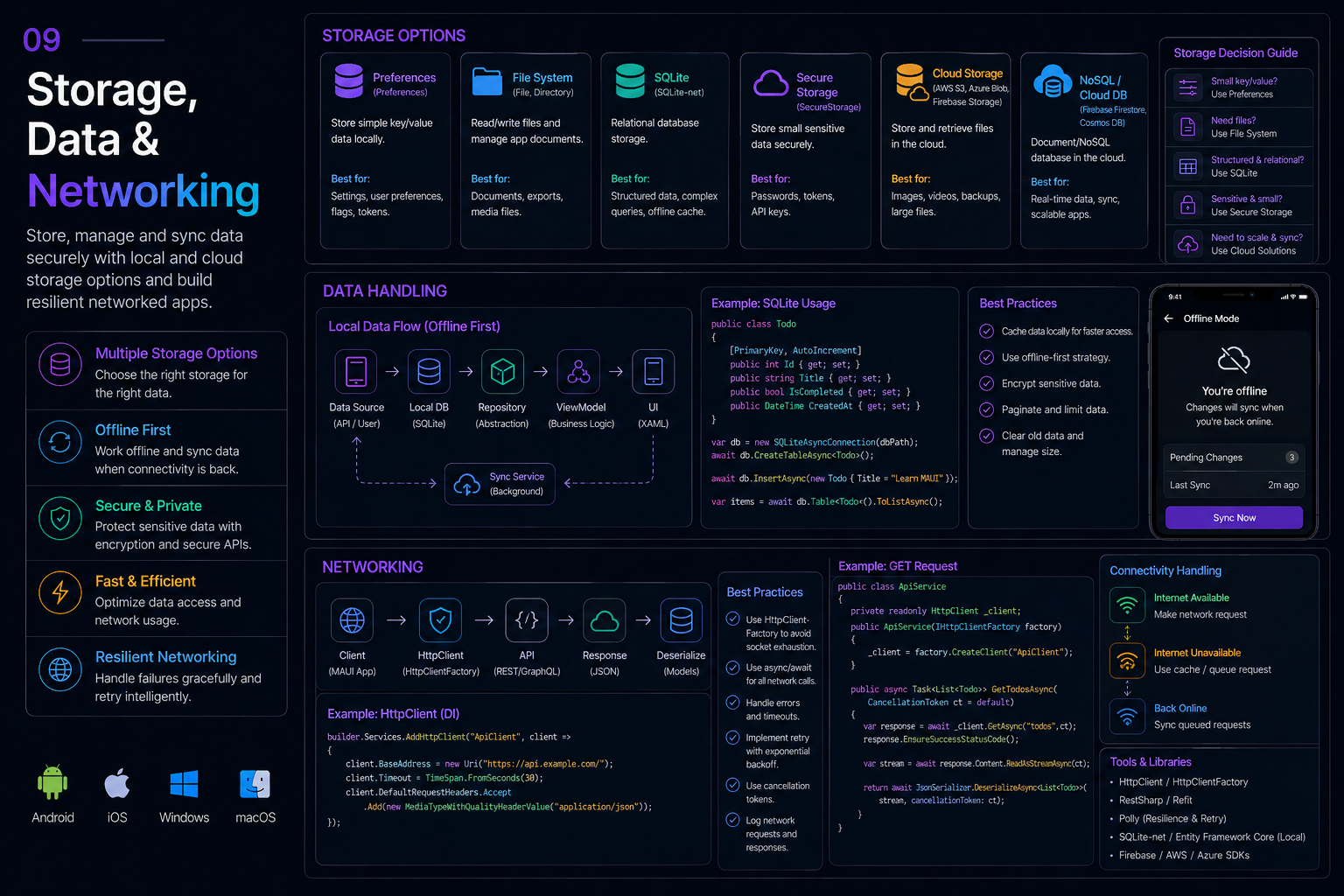
❓ Explain SecureStorage in .NET MAUI. How does it differ across iOS and Android?
SecureStorage is a .NET MAUI API for storing sensitive key/value pairs (such as access tokens, passwords, or secrets) using the device's native secure storage mechanisms. Unlike the standard Preferences API, which stores data in plain text, SecureStorage ensures that data is encrypted at rest.
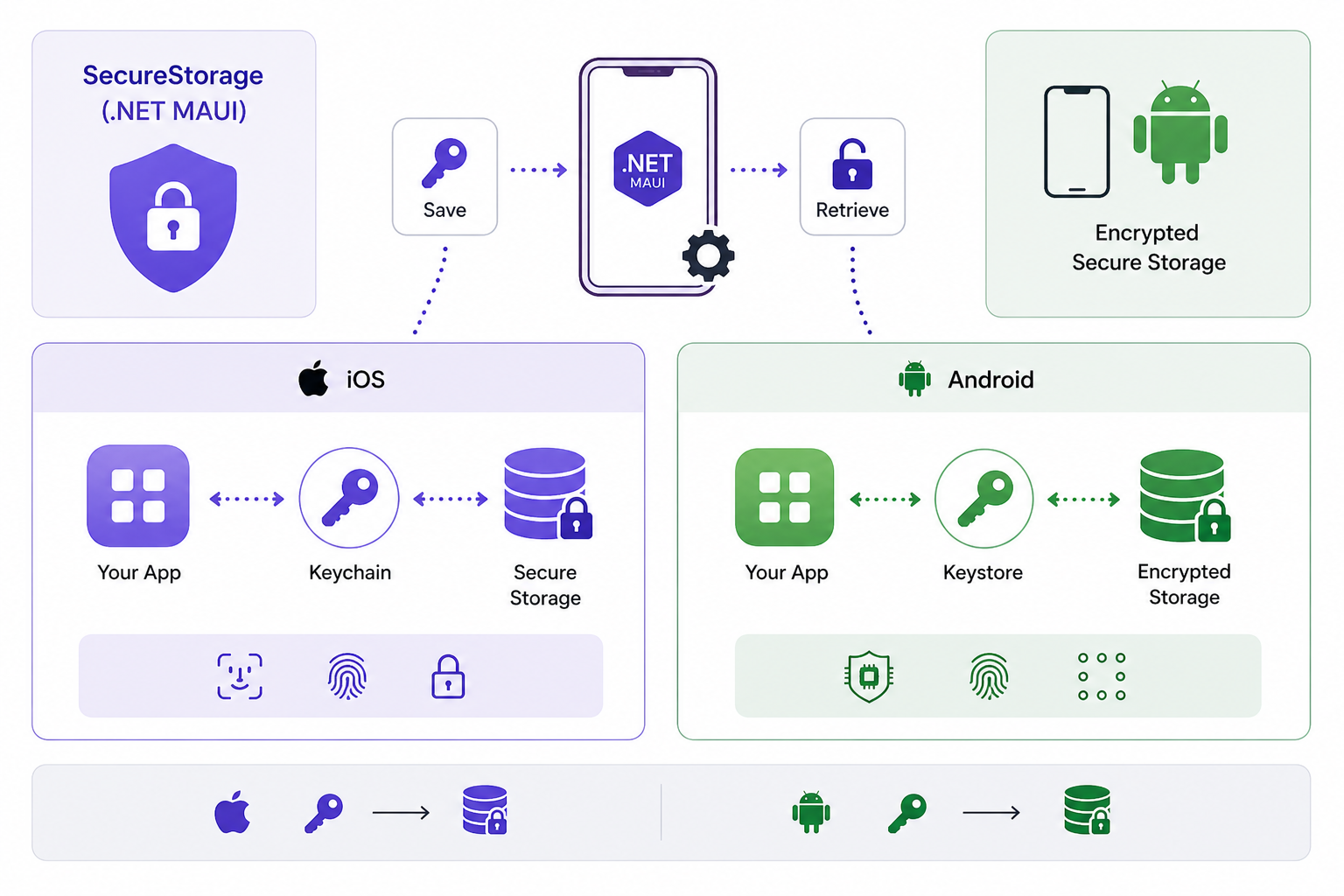
Platform implementations differ significantly:
- Android: Uses
EncryptedSharedPreferences(AES-256 GCM). Data is deleted on uninstall. Critical Auto Backup issue: Android backs up SharedPreferences, but backed-up encrypted data cannot be decrypted on a new device. Exclude viaauto_backup_rules.xml. - iOS: Uses Keychain. Data persists after uninstall — check for a first-launch flag and clear old entries. iCloud Keychain may sync entries to other devices (not controllable from MAUI). Simulator requires Keychain entitlement in
Entitlements.plistorSetAsyncthrowsMissingEntitlement. - Migration from Xamarin: Xamarin used service ID
{packageId}.xamarinessentialsvs MAUI’s{packageId}.microsoft.maui.essentials.preferences— aLegacySecureStoragehelper class is needed to read old values. The size limit is approximately 1.42 MB, designed for small secrets.
What .NET engineers should know:
- 👼 Junior: Understand that
SecureStorageis for secrets (tokens/passwords) andPreferencesis for non-sensitive settings (theme/language). Know thatSecureStorageonly supportsstringvalues, so you must serialize objects to JSON before saving. - 🎓 Middle: Handle the "Persistence" discrepancy: on iOS, a reinstalled app will still see old data, while on Android, it usually won't. Master the Android Auto Backup issue: if an app is restored from a backup,
SecureStoragemay throw a cryptographic exception because the encryption key changed. You must wrap calls intry/catchand useSecureStorage.Default.RemoveAll()if a corruption is detected. - 👑 Senior: Design an abstraction layer that handles "Environment Isolation" (ensuring Dev/Staging/Prod tokens don't collide if they share a bundle ID). Evaluate the security implications of KeyChain Access Groups for sharing secrets between a suite of apps. For high-security apps, implement a "First Run" check to manually clear the iOS Keychain, ensuring that a fresh installation doesn't start with potentially stale or hijacked credentials from a previous installation.
📚 Resources:
- Secure Storage
- Android Security Library - EncryptedSharedPreferences
- iOS KeyChain Services Documentation
- 🎥 Securely Persist Local Data in .NET MAUI (Secure Storage)
❓ How do you implement an offline-first architecture in a .NET MAUI mobile app?
Implementing an offline-first architecture in .NET MAUI involves shifting from a "Network-First" approach to a Local-First model. In this setup, the UI interacts exclusively with a local database, while a background process synchronizes that data with a remote server.
Local storage with SQLite:
var db = new SQLiteAsyncConnection(Path.Combine(FileSystem.AppDataDirectory, "app.db"));
await db.CreateTableAsync<TodoItem>();
Connectivity monitoring:
Connectivity.Current.ConnectivityChanged += (s, e) => {
    if (e.NetworkAccess == NetworkAccess.Internet) _ = SyncPendingChangesAsync();
};
Maintain a local table of pending mutations made offline. On reconnection, replay to the server with conflict resolution (last-write-wins, merge, or user-prompt). Use Polly for retries and circuit-breaking on HTTP calls. Libraries like Realm or Couchbase Lite provide built-in real-time sync with conflict resolution. NetworkAccess values include Internet, ConstrainedInternet, Local, and None.
What .NET engineers should know:
- 👼 Junior: Understand that the UI should bind to the local database, not directly to API calls. Know how to use the
ConnectivityAPI to show an "Offline" banner to the user. - 🎓 Middle: Master Incremental Sync to avoid downloading the entire dataset every time. Implement a robust Sync Queue to handle multiple pending operations and use Polly for automatic retries.
- 👑 Senior: Design a conflict resolution engine that handles complex relational data. Address Database Migrations for offline users who might skip several app versions, and implement Background Tasks to sync data even when the app isn't in the foreground.
📚 Resources: Connectivity
❓ How does SQLite work in .NET MAUI, and what are the file system differences between iOS and Android?
In .NET MAUI, SQLite works as a lightweight, serverless database engine that resides as a single file on the device's local storage. To interact with it, developers typically use the sqlite-net-pcl library, which provides an ORM (Object-Relational Mapping) layer, allowing you to perform database operations using C# objects and LINQ instead of raw SQL strings.
Use sqlite-net-pcl NuGet:
string dbPath = Path.Combine(FileSystem.AppDataDirectory, "myapp.db");
var db = new SQLiteAsyncConnection(dbPath);
await db.CreateTableAsync<Person>();
var people = await db.Table<Person>().Where(p => p.Age > 25).ToListAsync();
File system differences:
FileSystem.AppDataDirectory provides sandboxed app storage on both platforms.
- iOS has a strict app sandbox with no direct access to other apps’ files and Keychain data that persists after uninstall.
- Android has scoped storage since API 29 with
WRITE_EXTERNAL_STORAGEdeprecated on API 33+ — useMediaStorefor shared media.
What .NET engineers should know:
- 👼 Junior: Understand that
FileSystem.AppDataDirectoryis the correct place for your.db3file, not theCacheDirectory(which the OS can wipe to save space). Know how to use the[PrimaryKey]attribute to prevent duplicate entries during inserts. - 🎓 Middle: Master Lazy Initialization (as shown in the code above) to ensure the database is only created when first accessed. Understand Write-Ahead Logging (WAL): calling
EnableWriteAheadLoggingAsync()significantly improves performance by allowing simultaneous reads and writes. - 👑 Senior: Manage schema migrations, encryption, and concurrency in SQLite; design repository abstractions for testability and portability. Optimize SQLite usage for performance; handle storage quotas and user data across upgrades; design cross-platform file handling strategies
📚 Resources: .NET MAUI local databases
❓ How do you configure HttpClient and platform network handlers in MAUI?
In .NET MAUI, HttpClient is usually registered via dependency injection and consumed by services, rather than created directly in pages or ViewModels. This keeps the networking testable and avoids socket exhaustion caused by creating many short-lived HttpClient instances.
builder.Services.AddHttpClient<IApiClient, ApiClient>(client =>
{
    client.BaseAddress = new Uri("https://api.example.com/");
    client.Timeout = TimeSpan.FromSeconds(30);
});
The API service then receives HttpClient through the constructor:
public sealed class ApiClient : IApiClient
{
    private readonly HttpClient httpClient;

    public ApiClient(HttpClient httpClient)
    {
        this.httpClient = httpClient;
    }

    public async Task<UserDto?> GetCurrentUserAsync()
    {
        return await httpClient.GetFromJsonAsync<UserDto>("users/me");
    }
}
MAUI can also use platform-specific HTTP handlers. This is useful when the app needs native networking behavior, certificate handling, proxy support, or platform-specific performance tuning. The handler can be configured behind DI, while the rest of the app still works with HttpClient.
builder.Services.AddHttpClient<IApiClient, ApiClient>()
    .ConfigurePrimaryHttpMessageHandler(() =>
    {
#if ANDROID
        return new Xamarin.Android.Net.AndroidMessageHandler();
#elif IOS || MACCATALYST
        return new NSUrlSessionHandler();
#else
        return new HttpClientHandler();
#endif
    });
The main rule is simple: app code depends on typed clients or services, while handler configuration stays in the composition root code like MauiProgram.
What .NET engineers should know:
- 👼 Junior: Register
HttpClientin DI and inject it into services instead of creating it inside pages. - 🎓 Middle: Use typed clients to centralize base URL, timeout, headers, and JSON handling.
- 👑 Senior: Platform handlers affect TLS, certificates, proxies, diagnostics, and performance. Keep them isolated behind DI and test behavior on real devices, not only emulators.
Performance, Trimming & Runtime
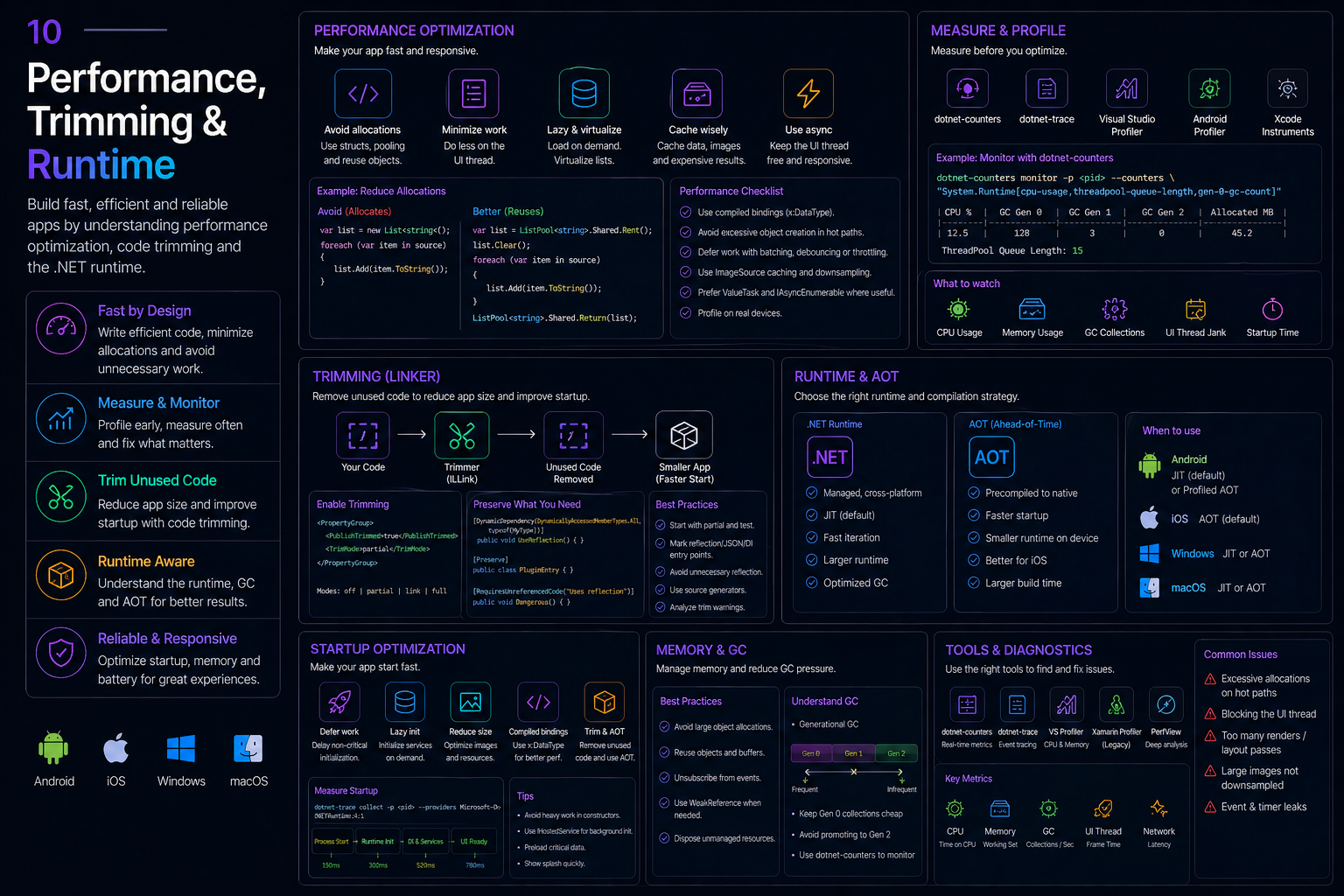
❓ How do you optimize .NET MAUI mobile app startup time?
Start by measuring startup on real devices, then remove avoidable work from the startup path. Defer network calls, database warmup, and expensive service creation until the first screen actually needs them. Keep constructors light, reduce eager DI registrations, lazy-load optional features, and compress or right-size image assets to ensure the first page renders quickly.
XAML compilation is already enabled by default in .NET MAUI. In Debug builds it provides compile-time validation while preserving the inner-loop experience; in Release builds it converts XAML to IL. For .NET 10 projects, evaluate XAML source generation with MauiXamlInflator when it fits the app, and use compiled bindings by setting x:DataType so binding paths are validated and resolved at compile time.
Runtime and publishing choices are platform-specific. Android and iOS Release builds normally use Mono AOT, Windows can use ReadyToRun, and Native AOT is an explicit publish model for iOS and Mac Catalyst. Treat trimming and AOT warnings as engineering work, not noise: publish representative Release builds, fix warnings, and validate behavior on devices before making size/startup trade-offs.
What .NET engineers should know:
- 👼 Junior: Keep startup code small: defer non-critical work, avoid heavy constructors, optimize images, and measure on a device rather than judging only from an emulator.
- 🎓 Middle: Use compiled bindings with
x:DataType, lazy initialization, and platform profilers such asdotnet-trace, Android Studio, Instruments, and Visual Studio diagnostics to find real startup bottlenecks. - 👑 Senior: Choose Mono AOT, ReadyToRun, Native AOT, trimming, and XAML source generation based on measured startup, package size, diagnostics, and compatibility goals. Fix trim/AOT warnings in CI before release builds reach the store submission step.
📚 Resources:
❓ What strategies optimize memory and battery on mobile MAUI apps?
To keep a MAUI app efficient, focus on UI rendering cost, object lifetime, native resource usage, and measured platform behavior rather than enabling every optimization switch by default.
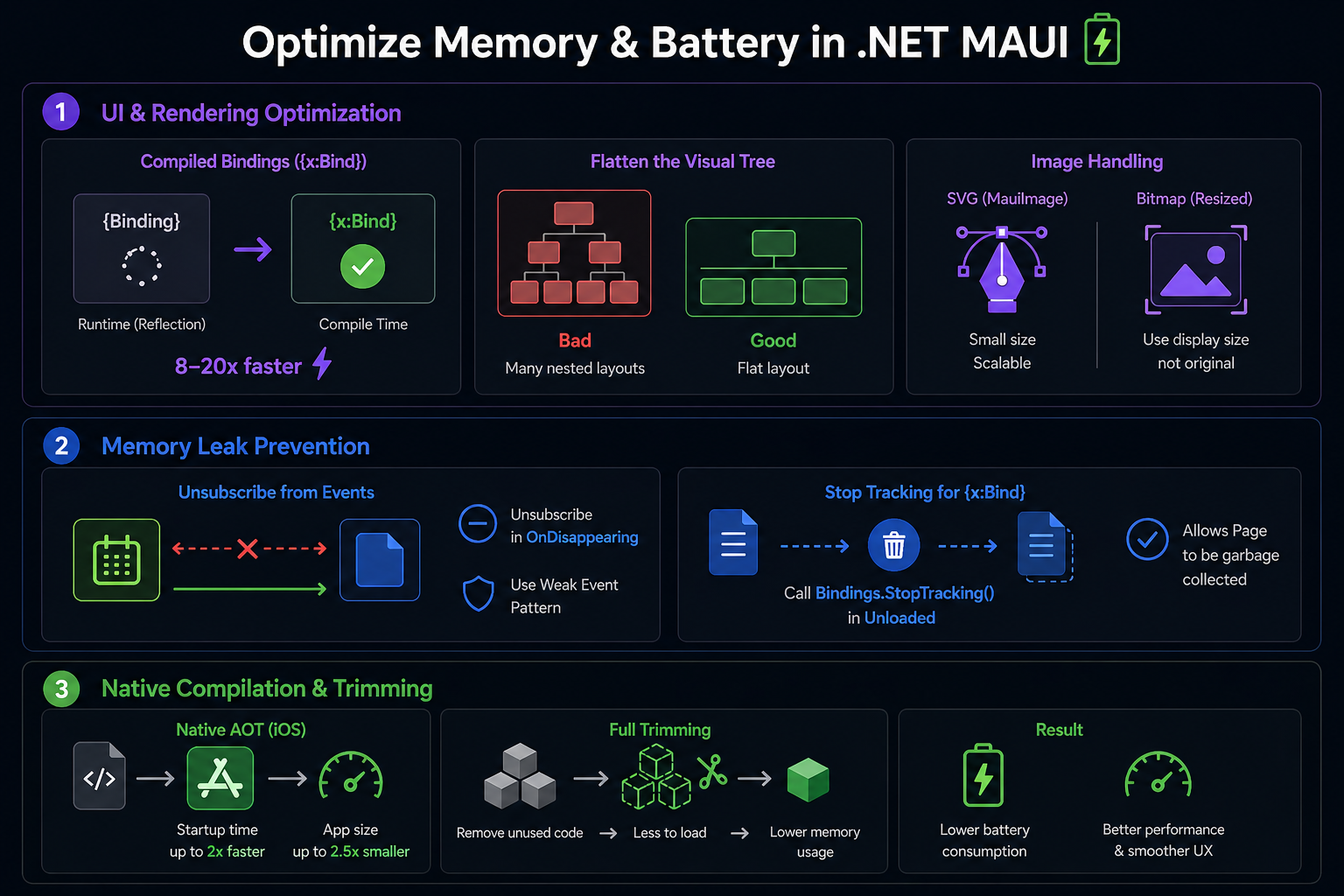
1. UI & Rendering Optimization
- Compiled bindings: In .NET MAUI, use normal
{Binding}expressions withx:DataType. This gives compile-time binding validation and avoids reflection-heavy runtime lookup where possible. - Flatten the visual tree: Avoid deeply nested layouts in frequently rendered views, especially
CollectionViewitem templates. Prefer simple grids, lightweight templates, and measured layout choices over decorative nesting. - Image handling: Use vector assets where appropriate, and resize bitmaps to their display dimensions rather than loading large source images into small controls.
2. Memory Leak Prevention
- Unsubscribe from events when a short-lived page or ViewModel subscribes to a long-lived service, or use weak-event patterns where they fit.
- Dispose streams, timers, native resources, sensors, camera sessions, and location listeners when the page disappears or when the app enters the stopped/background state.
- Profile managed heap, native memory, and Android JNI reference pressure on real devices; leaks often appear only after repeated navigation or list scrolling.
3. Native Compilation & Trimming
- Mono AOT: The normal Release compilation mode on MAUI mobile platforms. It improves startup over JIT-heavy execution but still differs from Native AOT.
- Native AOT: An explicit publish model for iOS and Mac Catalyst that can improve startup and package size, but requires full trimming and strict AOT compatibility.
- Full trimming: Useful for reducing size and load time when the app is trim-safe. Fix trim warnings and validate behavior rather than blindly suppressing them.
What .NET engineers should know:
- 👼 Junior: Use
CollectionViewfor virtualized lists, setx:DataTypeon pages and data templates, avoid oversized images, and stop sensors or location updates when they are no longer needed. - 🎓 Middle: Use
dotnet-gcdump, Visual Studio Memory Usage, platform profilers, and Android GPU overdraw tools to find real leaks and rendering hot spots. UseIQueryAttributableinstead of reflection-basedQueryPropertyin trim/AOT-sensitive code. - 👑 Senior: Treat polling, background work, and native resource ownership as battery-critical architecture decisions. Prefer push notifications or system-managed schedulers such as Android WorkManager and iOS Background Tasks for deferred work, and enforce Release-device performance checks before publishing.
📚 Resources:
❓ Why is AOT compilation required on iOS for .NET apps, and how does Native AOT work?
AOT matters on iOS because Apple restricts apps from generating and executing new machine code at runtime. Standard .NET MAUI Release builds for iOS normally use the Mono runtime with Mono AOT, not Native AOT. Mono AOT precompiles managed code for the platform and, on iOS device Release builds, avoids JIT execution while still being a different deployment model from Native AOT.
Native AOT is an explicit publish model for iOS and Mac Catalyst that you opt into with PublishAot. It produces a more aggressively optimized app and can reduce startup time and package size, but it requires full trimming and strict AOT compatibility. Only dotnet publish creates a Native AOT app when this model is enabled; a normal Debug build does not.
ReadyToRun is a separate CoreCLR precompilation model used in Windows and newer CoreCLR scenarios. It should not be described as the same thing as Mono AOT or Native AOT.
Example Native AOT publish configuration for iOS and Mac Catalyst:
<PropertyGroup>
  <IsAotCompatible>true</IsAotCompatible>
  <PublishAot Condition="$([MSBuild]::GetTargetPlatformIdentifier('$(TargetFramework)')) == 'ios'">true</PublishAot>
  <PublishAot Condition="$([MSBuild]::GetTargetPlatformIdentifier('$(TargetFramework)')) == 'maccatalyst'">true</PublishAot>
</PropertyGroup>
Example of AOT- and trim-risky patterns:
// Risky: runtime type resolution via string
var type = Type.GetType("MyApp.Services.DataService");
var instance = Activator.CreateInstance(type!);

// Risky: dynamic expression compilation
var expr = Expression.Lambda<Func<int>>(Expression.Constant(42));
var compiled = expr.Compile();

// Safer: direct generic registration is statically analyzable
builder.Services.AddSingleton<IDataService, DataService>();

// Safer: source-generated JSON serialization avoids runtime reflection
[JsonSerializable(typeof(ProductDto))]
public partial class AppJsonContext : JsonSerializerContext { }
When building for Native AOT, review and fix trim and AOT warnings. A warning can mean the published app may behave differently at runtime because required code was removed, or dynamic code paths cannot be generated. Validate published Release builds on devices, not only the simulator or Debug builds.
What .NET engineers should know:
- 👼 Junior: iOS device Release builds require ahead-of-time execution because JIT is restricted. In normal MAUI apps, this usually means Mono AOT.
- 🎓 Middle: Know the difference between Mono AOT, Native AOT, ReadyToRun, interpreter use, and trimming. Use
IQueryAttributable, source generators and statically analyzable registrations in trim/AOT-sensitive code. - 👑 Senior: Treat AOT and trimming compatibility as architectural constraints. Evaluate third-party libraries before adoption, publish regularly with warnings visible in CI, and choose Native AOT only when its startup/size benefits outweigh diagnostics and compatibility costs.
📚 Resources:
- Runtimes and compilation in .NET MAUI
- Native AOT deployment on iOS and Mac Catalyst
- Trim a .NET MAUI app
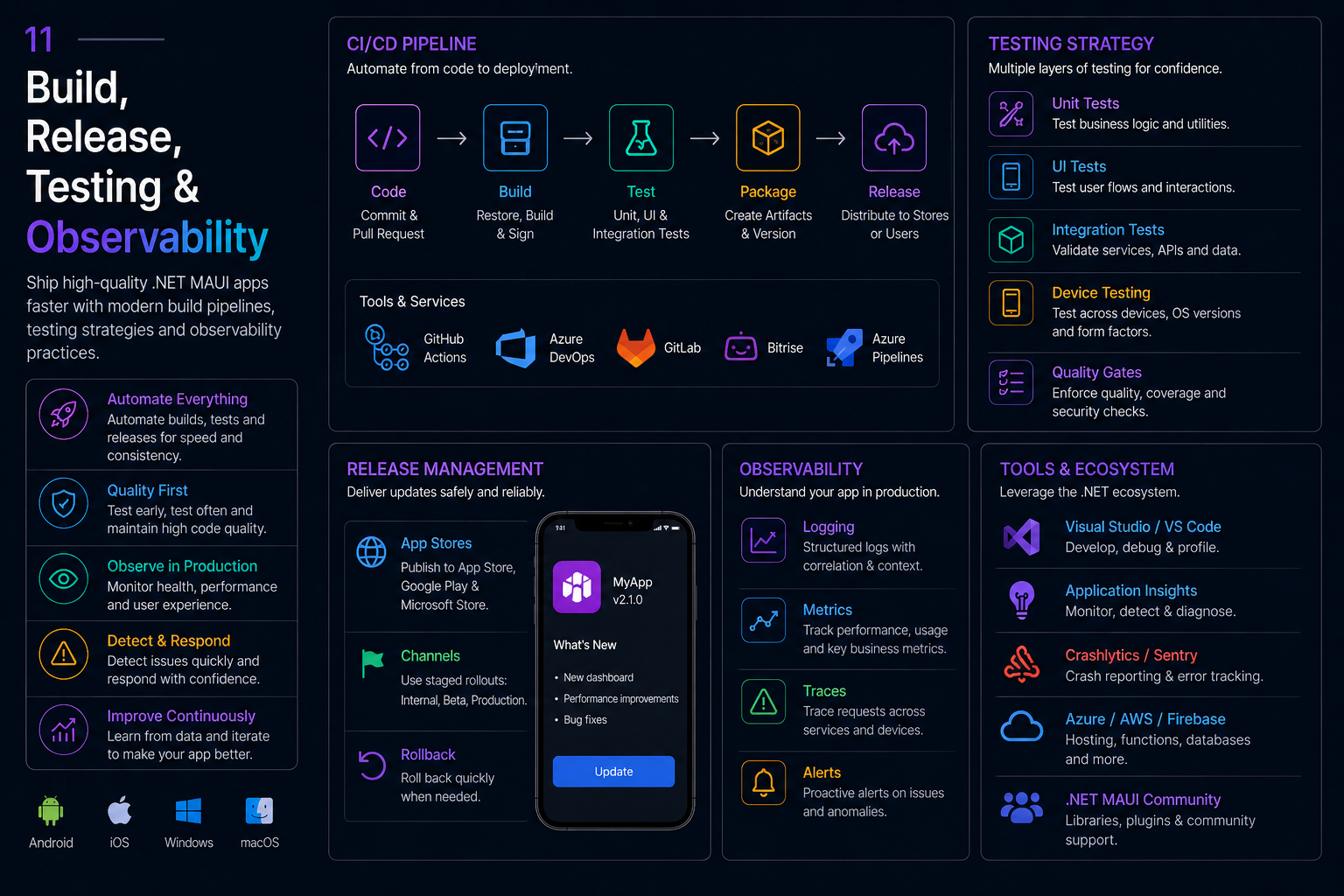
Build, Release, Testing & Observability
❓ Describe deploying a .NET MAUI app to the App Store and Google Play.
Deploying a .NET MAUI app requires navigating two distinct ecosystems: the Google Play Console for Android and App Store Connect for iOS. While the code is shared, the packaging, signing, and submission workflows differ significantly.
Deploying to Google Play (Android)
Google requires the Android App Bundle (.aab) format for all new submissions. This format allows Google Play to generate optimized APKs for specific device configurations, reducing the app size for users.
- Signing: You must create an Android Keystore file (
.keystoreor.jks). This file contains your private signing key. Loss of this file means you can never update your app again. - Compilation: Use the
Releaseconfiguration and ensure the target framework is set to the latest stable Android version. - Submission: Upload the
.aabto the Google Play Console. You will need to complete the "App Content" section (privacy policy, target age, etc.) before the app can be reviewed.
CLI Command:
dotnet publish -f net9.0-android -c Release -p:AndroidKeyStore=True -p:AndroidSigningKeyStore=myapp.keystore -p:AndroidSigningStorePass=password -p:AndroidSigningKeyAlias=myalias -p:AndroidSigningKeyPass=passwordDeploying to the Apple App Store (iOS)
iOS deployment is strictly tied to the Apple ecosystem and requires a Mac (physical or cloud-based) to perform the final signing and "handshake" with Apple's servers.
- Signing: You need an App Store Distribution Certificate and an App Store Provisioning Profile. Unlike development profiles, these allow the app to be distributed to any device via the store.
- Bundle ID: Your
AppIdin the.csprojmust exactly match the Bundle ID registered in your Apple Developer account. - Submission: After building the
.ipafile, you use Transporter or the Xcode Organizer to upload the build to App Store Connect. You then configure screenshots, descriptions, and ratings in the web portal.
CLI Command:
dotnet publish -f net9.0-ios -c Release -p:ArchiveOnBuild=true -p:RuntimeIdentifier=ios-arm64 -p:CodesignKey="Apple Distribution: Your Name (ID)" -p:CodesignProvision="Your_Provisioning_Profile_Name"What .NET engineers should know:
- 👼 Junior: Understand Debug versus Release builds, Android App Bundles, iOS IPA archives, and the role of signing in proving app ownership.
- 🎓 Middle: Automate
dotnet publishtroubleshoot keystore/certificate/profile errors, and keep Bundle IDs, entitlements, version codes, and store metadata aligned. - 👑 Senior: Build CI/CD pipelines that sign, test, and distribute internal builds safely; protect signing assets; manage store policy changes; and use staged rollout and rollback strategies.
📚 Resources:
❓ What should you know about Play App Signing, upload keys, package formats, and app size optimization?
Publishing Android apps from MAUI involves more than just generating an APK. Modern Play Store deployment typically uses Play App Signing, in which Google manages the production signing key and the development team signs uploads with a separate upload key. This reduces operational risk because losing an upload key is recoverable, whereas historically losing the real app signing key meant losing the ability to update the app.
The main package formats are:
- APK — installable Android package, mostly used for local testing or sideloading
- AAB (Android App Bundle) — publishing format for Google Play; Google generates optimized APKs per device
- Universal APK / Split APKs — generated variants based on ABI, density, language, etc.
MAUI publishes targets AAB typically for production:
dotnet publish -f net10.0-android -c Release \
  -p:AndroidPackageFormat=aab
App size optimization matters because mobile users and app stores penalize bloated apps. Common optimization techniques include enabling linker trimming, shipping AAB instead of APK, removing unused native libraries, compressing assets, and avoiding oversized embedded resources.
<PropertyGroup>
  <PublishTrimmed>true</PublishTrimmed>
  <MtouchLink>SdkOnly</MtouchLink>
</PropertyGroup>
The practical reality is that app size is often driven more by dependencies and assets than by app code itself. Large image bundles, icon packs, analytics SDKs, and unused libraries can quickly inflate package size.
What .NET engineers should know:
- 👼 Junior: Google Play typically expects AAB packages, not raw APKs, for production publishing.
- 🎓 Middle: Play App Signing separates Google’s app signing key from the team’s upload key for safer key management.
- 👑 Senior: Mobile release engineering includes supply-chain security, signing key governance, CI/CD secret handling, dependency auditing, and ongoing package size monitoring.
📚 Resources:
- https://developer.android.com/studio/publish/app-signing
- https://learn.microsoft.com/en-us/dotnet/maui/android/deployment/publish-cli
- https://developer.android.com/guide/app-bundle
❓ How do you set up CI/CD for .NET MAUI mobile apps?
Setting up CI/CD for .NET MAUI means orchestrating SDK installation, MAUI workloads, platform-specific runners, signing assets, Release publishing, artifact retention, and store or tester distribution. iOS and Mac Catalyst builds need macOS runners; Android builds can run on Windows, macOS, or Linux, depending on the pipeline and signing setup.
Visual Studio App Center Build, Test, Distribution, and CodePush retired after March 31, 2025. App Center Analytics and Diagnostics remain supported only until June 30, 2026, so App Center should be treated as transitional legacy infrastructure rather than a strategic default. Current teams commonly use GitHub Actions, Azure Pipelines, Bitrise, Fastlane, Firebase App Distribution, TestFlight, Google Play Console, and store-specific automation.
A standard pipeline follows these steps:
- Environment setup: install the pinned .NET SDK, ideally through
global.json. - Workload setup: install or restore the required MAUI workloads for the target platforms.
- Signing assets: inject Android keystores, Apple certificates, provisioning profiles, and passwords from secure secret storage.
- Compilation: use
dotnet publishwith the target framework and Release configuration, for example-f net9.0-androidor-f net9.0-ios. - Distribution: publish
.aab,.apk, or.ipaartifacts to stores, TestFlight, Firebase App Distribution, enterprise MDM, or an internal artifact system.
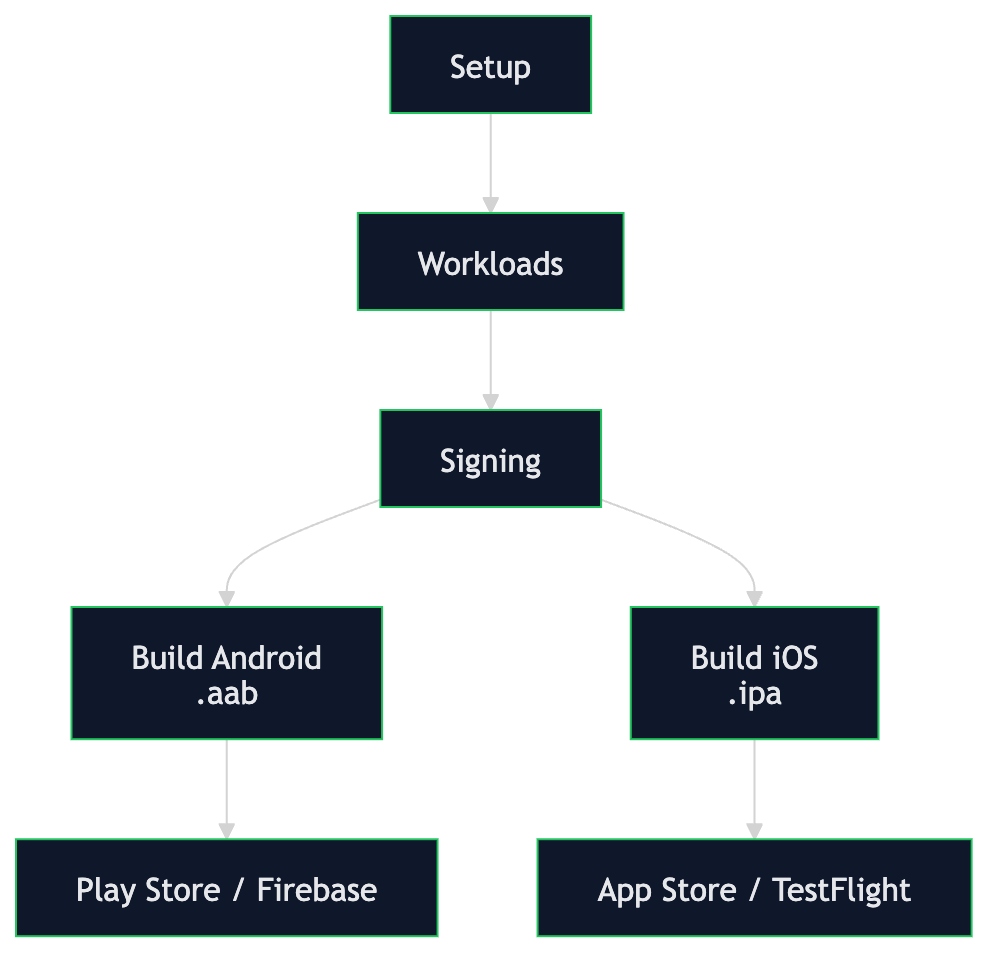
What .NET engineers should know:
- 👼 Junior: Know that MAUI builds require platform workloads and that iOS signing and publishing require macOS infrastructure.
- 🎓 Middle: Automate version codes, signing asset injection, workload caching, NuGet caching, artifact uploads, and environment-specific configuration without storing secrets in source control.
- 👑 Senior: Design release pipelines with separated build, signing, testing, distribution, and approval stages. Plan migration away from App Center dependencies, rotate signing keys, audit secret access, and make Release-device smoke tests part of the gate.
📚 Resources:
- Visual Studio App Center retirement
- Publish a .NET MAUI Android app with the CLI
- Publish a .NET MAUI iOS app with the CLI
❓ How do you handle crash reporting and analytics in .NET MAUI?
Crash reporting and analytics should be initialized early, attach enough context to diagnose failures, and avoid sending personally identifiable information. For 2026-era planning, treat App Center Analytics and Diagnostics as a short-lived legacy bridge: Microsoft retired most App Center services on March 31, 2025, and Analytics/Diagnostics support is extended only through June 30, 2026 while Azure Monitor mobile support is prepared.
Modern MAUI teams usually evaluate Firebase Crashlytics, Sentry, Bugsnag, Datadog, vendor-neutral OpenTelemetry-based patterns, or Azure Monitor when the Microsoft path fits their roadmap. The right choice depends on platform coverage, privacy controls, release gates, alerting, symbolication, and how well crash groups connect to the team’s issue tracker.
The critical requirement for useful crash reporting is initializing the SDK as early as possible in MauiProgram.CreateMauiApp() or platform entry points so startup crashes can be captured. Crashes before SDK initialization are invisible to the reporting tool.
Example of vendor-neutral crash reporting behind an abstraction:
public interface ICrashReporter
{
    void TrackError(Exception exception, IReadOnlyDictionary<string, string>? properties = null);
    void TrackEvent(string name, IReadOnlyDictionary<string, string>? properties = null);
}
Example of attaching breadcrumbs and custom properties to crashes:
public partial class CheckoutViewModel : ObservableObject
{
    private readonly ICrashReporter _telemetry;

    [RelayCommand]
    private async Task PlaceOrderAsync()
    {
        _telemetry.TrackEvent("checkout_started", new Dictionary<string, string>
        {
            ["item_count"] = Cart.Count.ToString(),
            ["total"] = Cart.Total.ToString("F2")
        });

        try
        {
            await _orderService.SubmitAsync(Cart);
            _telemetry.TrackEvent("checkout_completed");
        }
        catch (Exception ex)
        {
            _telemetry.TrackError(ex, new Dictionary<string, string>
            {
                ["cart_id"] = Cart.Id.ToString(),
                ["route"] = "checkout"
            });
            ErrorMessage = "Order failed. Please try again.";
        }
    }
}
For production apps, strip personally identifiable information from crash reports before they leave the device: use opaque user IDs instead of names, never include credentials or session tokens, and sanitize free-text fields that might appear in custom properties. GDPR, store privacy labels, and enterprise privacy requirements all apply to crash and analytics data.
What .NET engineers should know:
- 👼 Junior: Initialize crash reporting before user workflows begin, and understand that crashes before SDK startup may not be captured.
- 🎓 Middle: Attach structured context such as app version, route, feature flag state, and anonymized account ID so crash groups are actionable without requiring immediate reproduction.
- 👑 Senior: Treat crash-free sessions, startup crash rate, symbolication health, privacy filtering, and alert routing as release quality gates. Build an App Center migration plan if the app still depends on it.
📚 Resources:
❓ What are the key mobile testing strategies for .NET MAUI apps?
MAUI app testing splits into three layers: unit testing ViewModels, and services in isolation, integration testing of platform behavior with a MAUI test host, and UI automation testing of end-to-end flows on real devices or emulators. A healthy strategy weights the pyramid toward fast unit tests and uses slower device tests for platform-specific risk.
ViewModel and service unit tests run in plain xUnit or NUnit projects without MAUI runtime dependencies. Platform integration tests run inside the MAUI runtime on devices or emulators. UI automation uses Appium or MAUI UITest-style infrastructure for critical user journeys, with stable selectors such as AutomationId.
Example of a pure ViewModel unit test with no MAUI dependency:
public class OrderViewModelTests
{
    [Fact]
    public async Task LoadOrders_PopulatesCollection_WhenServiceReturns()
    {
        var mockService = Substitute.For<IOrderService>();
        mockService.GetOrdersAsync(default)
            .Returns([new OrderDto(1, "Test Order", 99.99m)]);

        var vm = new OrderListViewModel(mockService);
        await vm.LoadOrdersCommand.ExecuteAsync(null);

        Assert.Single(vm.Orders);
        Assert.Equal("Test Order", vm.Orders[0].Name);
    }
}
Example of Appium UI automation for an end-to-end flow:
public class CheckoutFlowTests : IDisposable
{
    private readonly AndroidDriver _driver;

    public CheckoutFlowTests()
    {
        var options = new AppiumOptions();
        options.AddAdditionalAppiumOption("app", "/path/to/app.apk");
        _driver = new AndroidDriver(new Uri("http://localhost:4723"), options);
    }

    [Fact]
    public void CompletesCheckout()
    {
        _driver.FindElement(MobileBy.AccessibilityId("CheckoutButton")).Click();
        _driver.FindElement(MobileBy.AccessibilityId("ConfirmOrderButton")).Click();

        var confirmation = _driver.FindElement(
            MobileBy.AccessibilityId("OrderConfirmationLabel"));
        Assert.True(confirmation.Displayed);
    }

    public void Dispose() => _driver.Quit();
}
Accessibility IDs are the most reliable UI automation selectors. Set AutomationId on interactive controls in XAML as a standard practice so tests do not depend on translated text, layout position, or visual styling.
<!-- Set AutomationId on all interactive controls -->
<Button AutomationId="CheckoutButton"
        Text="Checkout"
        Command="{Binding CheckoutCommand}" />
What .NET engineers should know:
- 👼 Junior: Keep ViewModels and services free of MAUI dependencies so they can be unit tested without a device.
- 🎓 Middle: Set
AutomationIdon interactive controls from the start, and reserve UI automation for flows where device-level confidence matters. - 👑 Senior: Design the mobile test pyramid deliberately. Use unit tests for business logic, device integration tests for permissions and sensors, and Appium for critical journeys. For hybrid apps, plan for native and WEBVIEW context switching rather than assuming a single selector strategy covers everything.
📚 Resources:
Blazor Hybrid & Web Views
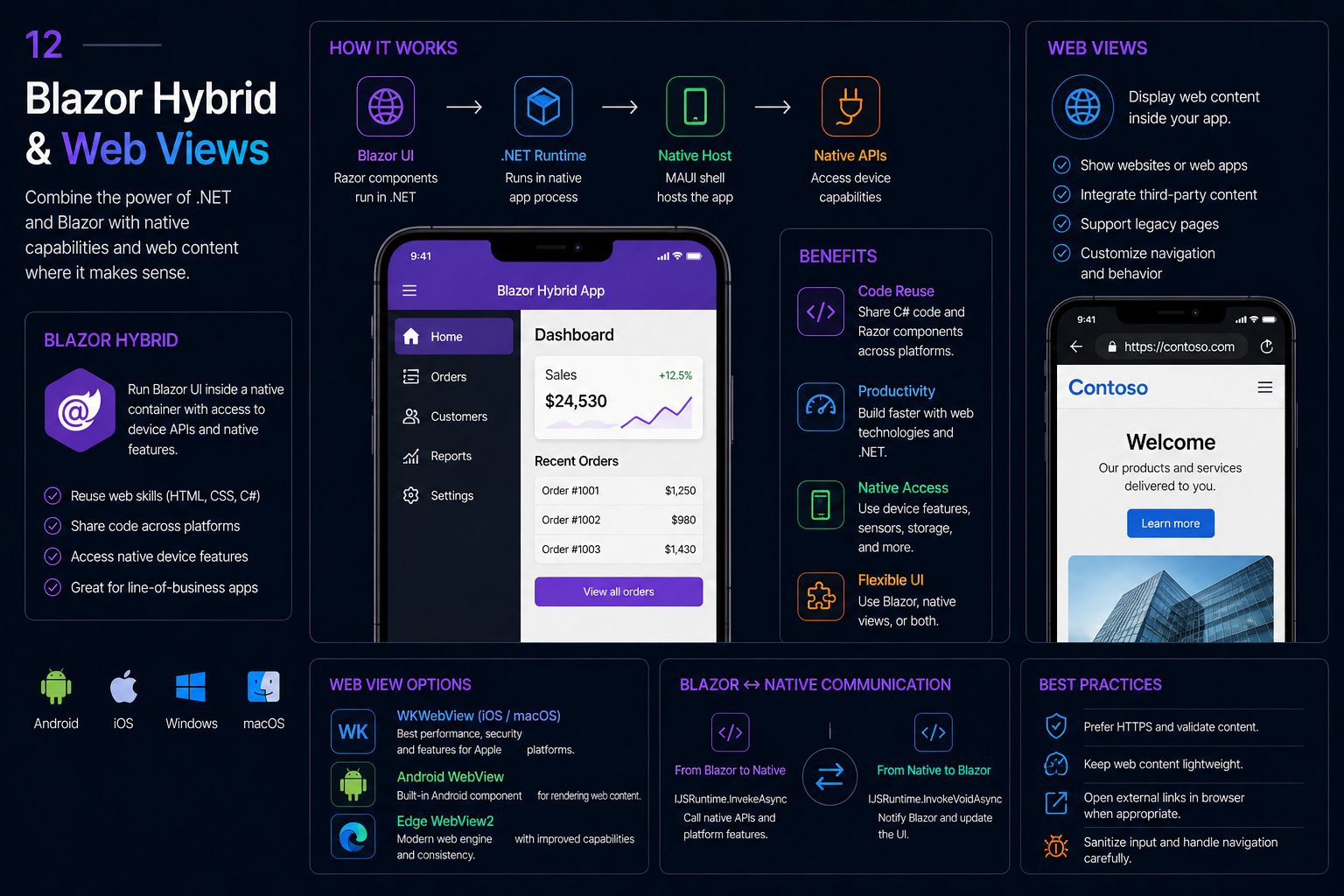
❓ What is BlazorWebView in .NET MAUI, and how does its architecture work?
BlazorWebView is a .NET MAUI control that hosts Blazor web UI components inside a native app. Razor components run natively in the .NET process — not in the browser and not via WebAssembly. They render the web UI to an embedded platform-specific WebView (WebView2 on Windows, WKWebView on iOS/macOS, and Android WebView on Android) via a local interop channel.
The control specifies a HostPage (typically wwwroot/index.html) and RootComponents with CSS selectors. Registration requires builder.Services.AddMauiBlazorWebView() in MauiProgram.cs. It can coexist with native XAML controls on the same page, enabling mixed UI. Configuration events BlazorWebViewInitializing and BlazorWebViewInitialized provide access to underlying platform WebView settings.
What .NET engineers should know:
- 👼 Junior: BlazorWebView hosts Blazor components inside a native .NET MAUI app using platform WebViews; Razor components run in the native process, not WebAssembly. You can specify a HostPage and root components and mix Blazor UI with native XAML
- 🎓 Middle: Register AddMauiBlazorWebView in MauiProgram; configure interop events like BlazorWebViewInitializing; access the underlying WebView for settings. Understand local interop channel vs web; optimize page composition and update performance
- 👑 Senior: Architect hybrid apps combining native and Blazor UI; consider separation of concerns and state management across layers; optimize initialization time. Leverage local interop for rich device integration; design scalable component structures and handle cross-platform differences
📚 Resources:
❓ When should you choose Blazor Hybrid vs. native MAUI UI?
- Choose Blazor Hybrid when your team has strong web skills (HTML/CSS/C#), you want to share UI components between web and mobile via Razor Class Libraries, you’re building business/enterprise apps where a consistent cross-platform look-and-feel matters more than platform-native appearance, or you have an existing Blazor web app to extend to mobile.
- Choose native MAUI (XAML) when you need a truly native look and feel, matching each platform’s design language, performance-critical UIs with complex animations, support for older devices/OS versions, or your team has strong XAML experience.
- Hybrid approach: You can mix both — native MAUI XAML for some screens and BlazorWebView for others within the same app.
What .NET engineers should know:
- 👼 Junior: Choose Blazor Hybrid when you want to reuse web UI components and leverage HTML/CSS skills; choose native MAUI XAML when you need a native look and feel or complex animations
- 🎓 Middle: Evaluate team skills, code reuse goals and target platforms; consider performance differences and support for older devices. Use native MAUI for scenarios requiring per-platform UI or high performance; use Blazor Hybrid for business apps with shared UI between web and mobile
- 👑 Senior: Make architectural decisions based on long-term maintainability, performance, and developer productivity; design hybrid apps with a consistent navigation model and state management. Assess the overhead of using WebView and determine the best approach for each part of your app; guide the team in a balanced hybrid strategy
📚 Resources:
❓ How do you share Razor components between a Blazor Web App and a Blazor Hybrid MAUI app?
Sharing Razor components between Blazor Web and Blazor Hybrid works through a Razor Class Library (RCL) — a separate project that contains all shared components, pages, CSS, and static assets. Both the Blazor Web App and the MAUI Blazor Hybrid app reference the RCL and host the same components in their respective runtimes. The web app renders via WebAssembly or Server, the MAUI app renders via BlazorWebView inside a native shell — the components themselves are unaware of which host they're running in.
The architectural challenge is that shared components often need platform-specific behavior — file picking, device sensors, push notifications — that doesn't exist in the browser. The solution is abstracting platform dependencies behind interfaces defined in the RCL, implemented separately by each host project and injected via DI.
CSS isolation works across the RCL boundary — scoped .razor.css files in the RCL apply correctly in both hosts. Static assets like images and fonts placed in the RCL's wwwroot folder are served by the web host and embedded in the MAUI app's BlazorWebView asset pipeline automatically.
What .NET engineers should know:
- 👼 Junior: Put shared Razor components in a Razor Class Library and reference it from both the MAUI and Web projects — components in the RCL render identically in both hosts without modification.
- 🎓 Middle: Abstract all platform-specific capabilities behind interfaces defined in the RCL — file picking, notifications, device info — and register host-specific implementations in each project's DI setup so shared components never reference platform APIs directly.
- 👑 Senior: Evaluate the rendering model mismatch early — Blazor Server and WebAssembly have different component lifecycle timing and threading constraints compared to Blazor Hybrid's synchronous native thread model. Components that work correctly in both hosts require careful handling of
InvokeAsync,StateHasChanged, and JS interop calls that behave differently across rendering contexts.
📚 Resources:
❓ How does JavaScript interop work in Blazor Hybrid apps, and what differs from Blazor Web?
JS interop uses IJSRuntime injected into Razor components, calling JavaScript in the embedded WebView:
@inject IJSRuntime JS
await JS.InvokeVoidAsync("myFunction", arg1, arg2);
Key differences from Blazor Web: No SignalR is involved; JS interop goes through a local interop channel with no network latency. No message size limits from SignalR (Blazor Server caps at 32KB by default). Performance is generally better than Blazor Server interop. Minimize JS interop calls by batching operations. Don’t modify DOM elements that Blazor manages. Serialization overhead exists (System.Text.Json) — avoid passing extremely large objects.
What .NET engineers should know:
- 👼 Junior:
IJSRuntimeworks the same way in Blazor Hybrid as in Blazor Web —InvokeAsyncandInvokeVoidAsynccall JS functions in both hosts using identical syntax. - 🎓 Middle: Use lazy JS module loading via
Lazy<Task<IJSObjectReference>>for collocated modules — it handles WebView initialization timing in Hybrid and deferred module loading in WebAssembly correctly in both hosts without platform-specific branching. - 👑 Senior: Audit all JS interop calls that rely on browser platform APIs — geolocation, clipboard, notifications, storage — against each target WebView's capability matrix before committing to shared implementations. Where WebView restrictions require native alternatives in MAUI, abstract the capability behind an interface with a JS-based web implementation and a MAUI Essentials native implementation rather than wrapping native WebView workarounds in JS interop code.
📚 Resources: ASP.NET Core Blazor JavaScript interoperability (JS interop)
❓ Explain how BlazorWebView.TryDispatchAsync works, and when you would use it.
TryDispatchAsync is a method on BlazorWebView that marshals a delegate onto the Blazor renderer's synchronization context from outside the Blazor component tree. In Blazor Hybrid, the Blazor renderer runs on its own synchronization context inside the native WebView — it's neither the .NET MAUI UI thread nor a standard thread pool thread. Code running outside that context — native event handlers, MAUI services, background workers — cannot safely call StateHasChanged or interact with component state directly. TryDispatchAsync solves this by queuing the delegate onto the correct Blazor context.
The method returns false if the WebView is not yet initialized or has been disposed — the Try prefix signals that dispatch is not guaranteed, and callers should handle the failure case rather than assuming the delegate executed.
Example of updating Blazor component state from a native MAUI service:
public partial class MainPage : ContentPage
{
    private readonly SensorService _sensors;

    public MainPage(SensorService sensors)
    {
        InitializeComponent();
        _sensors = sensors;

        _sensors.ReadingChanged += OnSensorReadingChanged;
    }

    private async void OnSensorReadingChanged(SensorReading reading)
    {
        // Native event — wrong synchronization context for Blazor
        var dispatched = await BlazorWebViewControl.TryDispatchAsync(sp =>
        {
            var store = sp.GetRequiredService<ISensorStateStore>();
            store.UpdateReading(reading);
            return ValueTask.CompletedTask;
        });

        if (!dispatched)
            Debug.WriteLine("BlazorWebView not ready — reading dropped");
    }
}
Example of injecting a scoped Blazor service and triggering UI update:
private async void OnPushNotificationReceived(string payload)
{
    await BlazorWebViewControl.TryDispatchAsync(sp =>
    {
        var notificationService = sp.GetRequiredService<INotificationState>();
        notificationService.AddNotification(payload);
        // StateHasChanged called inside the component reacting to INotificationState
        return ValueTask.CompletedTask;
    });
}
The sp parameter passed to the delegate is the Blazor DI scope's IServiceProvider — It resolves services registered in the Blazor DI container, not the MAUI DI container, though in most Hybrid setups these share the same registrations. This makes it the correct way to reach Blazor-scoped services, such as state containers, or to cascade state from native code.
What .NET engineers should know:
- 👼 Junior: Use
TryDispatchAsyncwhen native MAUI code — event handlers, background services, platform callbacks — needs to update state that Blazor components are bound to. Direct calls from outside the Blazor context will not trigger UI updates correctly. - 🎓 Middle: Always handle the
falsereturn value — the WebView may not be initialized during app startup or may have been disposed during navigation. Queue missed updates or retry rather than silently dropping them if the data is critical. - 👑 Senior: Minimize direct
TryDispatchAsyncusage by designing state containers as observable singletons shared between MAUI and Blazor DI scopes — native code updates the shared state object, Blazor components subscribe to change notifications and callStateHasChangedthemselves, keeping the dispatch boundary thin and the coupling between native and Blazor layers explicit.
📚 Resources:
❓ What are the performance considerations for Blazor Hybrid apps on mobile devices?
Blazor Hybrid on mobile runs the .NET runtime natively but renders UI inside a WebView — this means performance is constrained by two distinct layers: .NET execution cost and WebView rendering cost. Unlike native MAUI controls rendered directly by the platform, every Blazor component renders to HTML and CSS inside a WebView, which adds a layout and paint pipeline on top of .NET's component diffing. On lower-end Android devices, this compound cost is measurable and requires deliberate optimization.
The largest performance risk is treating Blazor Hybrid like a web app running on fast desktop hardware. Mobile WebViews have significantly less GPU memory, slower JS engines, and tighter memory budgets than desktop browsers. Large component trees, excessive StateHasChanged calls and unvirtualized lists all hit harder on mobile than in a desktop simulator.
Optimization strategies: Use @key directives for efficient list rendering, implement ShouldRender() to prevent unnecessary re-renders, enable hardware acceleration for Android emulators, use AOT for release builds, and compose small, focused components rather than monolithic ones.
Example of minimizing unnecessary re-renders with ShouldRender:
public partial class ProductCard : ComponentBase
{
    [Parameter] public ProductDto Product { get; set; } = default!;
    private ProductDto? _lastRendered;

    protected override bool ShouldRender()
    {
        if (_lastRendered == Product) return false;
        _lastRendered = Product;
        return true;
    }
}
What .NET engineers should know:
- 👼 Junior: Use
<Virtualize>for any list with more than 20-30 items — unvirtualized lists in a WebView on Android mid-range devices cause visible scroll jank that doesn't appear on desktop simulators. - 🎓 Middle: Override
ShouldRenderon leaf components that receive frequent parameter updates, isolate high-frequency state changes into dedicated child components with their ownStateHasChangedcalls, and profile on a real mid-range Android device — not a simulator — before shipping. - 👑 Senior: Evaluate whether Blazor Hybrid is the right rendering model for performance-critical screens — native MAUI controls render faster than WebView-hosted HTML on mobile, and a hybrid approach using native MAUI shell with Blazor only for content-heavy or web-derived screens often delivers better perceived performance than full Blazor Hybrid across all screens.
📚 Resources:
❓ What are the key limitations of Blazor Hybrid on mobile?
Blazor Hybrid sits between native and web application models. Razor components run in the native .NET process, but UI still renders through a platform WebView, so the app inherits WebView rendering, debugging, and automation constraints while still needing native MAUI code for device capabilities.
The limitations group into four categories: rendering, performance, platform integration, and tooling.
- Rendering — WebView behavior can vary across Android OEMs and WebView versions. Fonts, shadows, scrolling, and flexbox layout may differ between devices running the same Android version. iOS WKWebView is more consistent, but all iOS WebViews use WebKit.
- Performance — Blazor diffing plus WebView layout and paint can be slower than native controls on mid-range devices, especially for animation-heavy or list-heavy screens.
- Platform integration — browser APIs such as
navigator.geolocation,Notification,Clipboard, andlocalStoragecan be blocked or behave differently inside a native WebView. Use MAUI service abstractions for device features instead of relying on browser APIs. - Tooling — Hot Reload inside
BlazorWebViewcan be less reliable than Blazor Web or native MAUI. Debugging JS interop across the WebView boundary is harder, and UI automation may need to switch between native and WEBVIEW contexts. Appium can automate hybrid apps through WEBVIEW contexts, but setup is more fragile and depends on WebView debugging/configuration.
Example of detecting WebView limitations at runtime and falling back:
public class ClipboardService : IClipboardService
{
    private readonly IJSRuntime _js;
    private readonly bool _isHybrid;

    public ClipboardService(IJSRuntime js, IHybridContext hybrid)
    {
        _js = js;
        _isHybrid = hybrid.IsHybrid;
    }

    public async Task CopyAsync(string text)
    {
        if (_isHybrid)
        {
            await Clipboard.Default.SetTextAsync(text);
            return;
        }

        await _js.InvokeVoidAsync("navigator.clipboard.writeText", text);
    }
}
What .NET engineers should know:
- 👼 Junior: Blazor Hybrid is not the same as a browser-hosted Blazor app; the UI is hosted in a native WebView and some browser APIs differ.
- 🎓 Middle: Abstract native feature access behind interfaces, request permissions in MAUI service implementations, and handle unavailable capabilities with typed results or clear fallbacks.
- 👑 Senior: Decide screen by screen whether BlazorWebView or native MAUI UI is the better rendering model. Design hybrid test infrastructure that can switch between native and WEBVIEW automation contexts when needed.
📚 Resources:
❓ How does navigation work in Blazor Hybrid compared to native MAUI navigation?
Blazor Hybrid navigation combines two independent navigation systems that don't natively know about each other. Inside the BlazorWebView, Blazor manages its own router — NavigationManager handles component-level navigation within the WebView's HTML context using the same URL-based routing as Blazor Web. Outside the WebView, the MAUI Shell manages native page navigation via GoToAsync. These two systems run in parallel — navigating in Blazor doesn't affect the MAUI shell stack, and navigating in MAUI Shell doesn't affect Blazor's router.
The practical implication is that the back button on Android and the navigation gestures on iOS interact with the MAUI shell stack rather than Blazor's router history. A user navigating through several Blazor components with NavigationManager.NavigateTo builds no native navigation stack — pressing back exits the entire WebView page rather than going back to the previous Blazor component.
For apps with a mix of native MAUI pages and Blazor content pages, the cleanest architecture is using MAUI Shell as the top-level navigator for major sections and Blazor router for content within each section's BlazorWebView. This preserves native navigation gestures and back stack behavior at the shell level while keeping Blazor routing scoped to its content area.
What .NET engineers should know:
- 👼 Junior:
NavigationManagernavigates between Blazor components inside the WebView — it has no awareness of MAUI Shell pages. The two navigation systems are independent and must be explicitly bridged. - 🎓 Middle: Handle the Android back button explicitly — Blazor router history is invisible to the native back stack, so pressing back without interception exits the WebView page instead of stepping back through Blazor component history.
- 👑 Senior: Design the navigation architecture before writing any routing code — decide whether MAUI Shell or Blazor router is the primary navigator for each screen type, establish a clean bridge service interface, and test back gesture behavior on both Android and iOS early since platform navigation conventions differ and both interact with the dual navigation stack in different ways.
📚 Resources:
❓ How do you access native device features from Blazor Hybrid components?
Blazor Hybrid components cannot access native device features directly — they run inside a WebView with no direct path to platform APIs. The pattern is the same as for any platform abstraction in shared code: define an interface in the RCL, implement it on each host using MAUI Essentials or platform-specific APIs, register the implementation in each host's DI container, and inject it into components. The component stays platform-agnostic; the host provides the capability.
This pattern applies to every native feature: camera, geolocation, sensors, biometrics, file system, notifications, haptics, and clipboard. MAUI Essentials covers most of these with a single cross-platform implementation that works across Android, iOS, Windows, and macOS.
For features requiring platform-specific UI — camera viewfinder, AR overlays, biometric prompt — the pattern extends to triggering native UI from the service implementation via MAUI's main thread dispatcher, keeping the native UI entirely outside the WebView, with the component only seeing the result.
Example of MAUI implementation using Essentials:
// MyApp.Maui
public class MauiDeviceFeatureService : IDeviceFeatureService
{
    public async Task<Location?> GetLocationAsync()
    {
        var status = await Permissions.RequestAsync<Permissions.LocationWhenInUse>();
        if (status != PermissionStatus.Granted) return null;

        return await Geolocation.Default.GetLocationAsync(
            new GeolocationRequest(GeolocationAccuracy.Medium));
    }

    public async Task<bool> AuthenticateAsync(string reason)
    {
        var result = await BiometricAuthentication.Default
            .AuthenticateAsync(new AuthenticationRequest { Title = reason });
        return result.IsAuthenticated;
    }

    public async Task VibrateAsync(TimeSpan duration)
        => await Vibration.Default.VibrateAsync(duration);
}
Example of web fallback implementation for browser host:
// MyApp.Web — browser fallback using JS interop
public class WebDeviceFeatureService : IDeviceFeatureService
{
    private readonly IJSRuntime _js;
    public WebDeviceFeatureService(IJSRuntime js) => _js = js;

    public async Task<Location?> GetLocationAsync()
    {
        var coords = await _js.InvokeAsync<GeolocationResult>(
            "navigator.geolocation.getCurrentPositionAsync");
        return coords is null ? null
            : new Location(coords.Latitude, coords.Longitude);
    }

    public Task<bool> AuthenticateAsync(string reason) =>
        Task.FromResult(true); // no biometrics in browser

    public Task VibrateAsync(TimeSpan duration) =>
        Task.CompletedTask; // not supported in browser
}
What .NET engineers should know:
- 👼 Junior: Define native feature access as interfaces in the RCL — inject MAUI Essentials implementations in the MAUI host and browser-compatible fallbacks in the web host, never reference platform types directly in shared components.
- 🎓 Middle: Request permissions inside the service implementation before accessing hardware APIs, handle
FeatureNotSupportedExceptionandPermissionExceptiongracefully, and return null or a typed result object rather than throwing from service methods, so components handle unavailability cleanly without try-catch in every component. - 👑 Senior: Design the service interface contract to be capability-honest — avoid interfaces that promise features the web host cannot deliver. Use capability flags (
bool IsLocationSupported) alongside feature methods so components can adapt their UI to available capabilities rather than silently degrading with invisible no-ops in the web fallback implementation.
📚 Resources:
Platform-Specific Internals
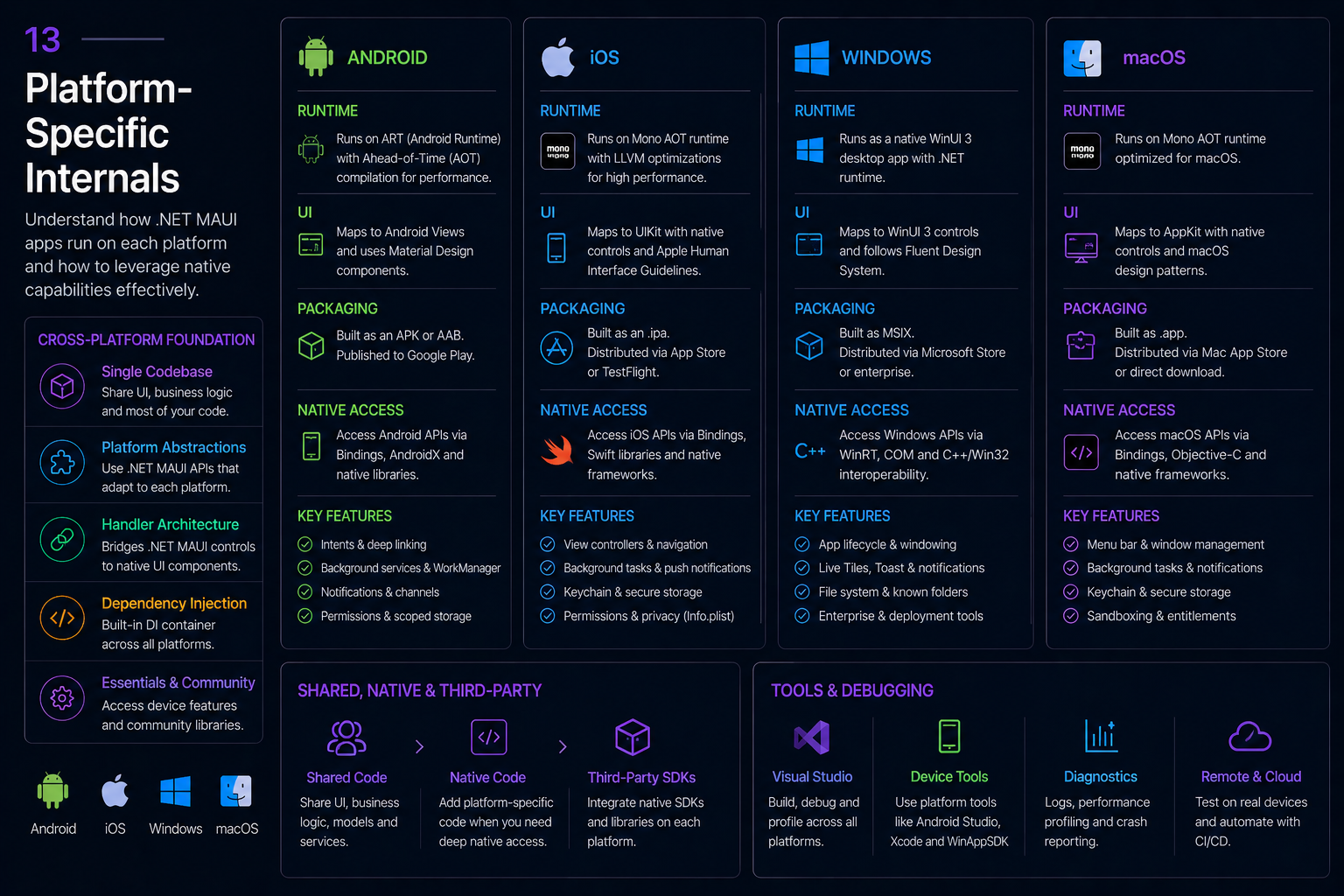
❓ What are iOS Entitlements and Provisioning Profiles, and how do they work together?
Entitlements and provisioning profiles are Apple's mechanism for controlling which capabilities an app can use and which devices it can run on. They're separate artifacts that work together during code signing — entitlements declare what the app claims it needs, and provisioning profiles validate that those claims are authorized for the signing identity and the target devices. An app that requests a capability not authorized in its provisioning profile is rejected at install time or App Store review.
Entitlements are a plist file declaring capability requirements for push notifications, iCloud, App Groups, HealthKit, NFC, and so on. Each entitlement is a key-value pair that Apple's codesign tool embeds into the signed binary. If the entitlement key is absent, the OS denies the capability at runtime regardless of what the app requests in code.
What .NET engineers should know:
- 👼 Junior: Entitlements declare what capabilities the app needs — push notifications, iCloud, App Groups. The provisioning profile must authorize the same entitlements, or the app will be rejected. Both must be set up in the Apple Developer Portal before building.
- 🎓 Middle: Maintain separate provisioning profiles for development (with device UDIDs), Ad Hoc (for TestFlight-style distribution), and App Store submission — each has different device and certificate constraints, and mixing them causes hard-to-diagnose signing failures in CI.
- 👑 Senior: Automate certificate and profile management via Fastlane Match or Apple's App Store Connect API — manual certificate management across a team causes sharing conflicts, expiry surprises, and CI failures that block releases. Treat signing credentials as secrets in the pipeline, rotate certificates before expiry on a calendar reminder, and validate entitlement-profile alignment as part of the release checklist.
📚 Resources:
❓ What is App Transport Security (ATS) and how do you configure it in .NET MAUI for iOS?
App Transport Security is Apple's network security policy, enforced at the OS level on iOS and macOS, that requires all HTTP connections to use HTTPS with TLS 1.2 or higher, forward-secret cipher suites, and SHA-256 or stronger certificates. ATS is enabled by default for all apps. Any plain HTTP request your app makes is blocked by the OS before it reaches the network stack, regardless of whether your code explicitly requests it. This applies to HttpClient, WebView content loading, and any third-party SDK making network calls.

ATS configuration lives in Info.plist under the NSAppTransportSecurity key. The configuration is hierarchical — global policy plus per-domain exceptions. Apple reviews ATS exceptions during App Store submission and requires a justification for any global disablement, so blanket disabling to work around HTTP APIs is a submission risk, not just a security concern.
Example of Info.plist ATS configuration in a MAUI iOS project:
<!-- Platforms/iOS/Info.plist -->
<key>NSAppTransportSecurity</key>
<dict>
    <!-- Allow specific HTTP domain — e.g. legacy internal API -->
    <key>NSExceptionDomains</key>
    <dict>
        <key>api.internal-legacy.com</key>
        <dict>
            <key>NSExceptionAllowsInsecureHTTPLoads</key>
            <true/>
            <key>NSExceptionMinimumTLSVersion</key>
            <string>TLSv1.2</string>
            <key>NSIncludesSubdomains</key>
            <true/>
        </dict>
    </dict>
</dict>
Example of allowing arbitrary loads for development only:
<!-- Debug Info.plist override — NEVER ship this in production -->
<key>NSAppTransportSecurity</key>
<dict>
    <key>NSAllowsArbitraryLoads</key>
    <true/>
</dict>
Example of conditionally applying ATS configuration per build in MAUI csproj:
<ItemGroup Condition="$(TargetFramework.Contains('ios')) and '$(Configuration)' == 'Debug'">
    <BundleResource Include="Platforms/iOS/Info.Debug.plist"
                    LogicalName="Info.plist" />
</ItemGroup>

<ItemGroup Condition="$(TargetFramework.Contains('ios')) and '$(Configuration)' == 'Release'">
    <BundleResource Include="Platforms/iOS/Info.Release.plist"
                    LogicalName="Info.plist" />
</ItemGroup>
Example of handling ATS failures gracefully in HttpClient:
public class ApiClient
{
    private readonly HttpClient _http;

    public ApiClient(HttpClient http) => _http = http;

    public async Task<T?> GetAsync<T>(string endpoint)
    {
        try
        {
            return await _http.GetFromJsonAsync<T>(endpoint);
        }
        catch (HttpRequestException ex)
            when (ex.Message.Contains("NSURLErrorDomain"))
        {
            // ATS blocking — log and surface meaningful error
            Debug.WriteLine($"ATS blocked request to {endpoint}: {ex.Message}");
            throw new NetworkSecurityException(
                "Connection blocked by App Transport Security", ex);
        }
    }
}
ATS also applies to BlazorWebView content if the Blazor app loads resources from HTTP endpoints, those requests are blocked on iOS regardless of the HttpClient configuration. Local content served from the app bundle is exempt since it doesn't transit the network.
What .NET engineers should know:
- 👼 Junior: All HTTP (non-HTTPS) requests are blocked on iOS by default — if your API doesn't use HTTPS or uses an old TLS version, configure
NSExceptionDomainsinInfo.plistfor that specific domain rather than disabling ATS globally. - 🎓 Middle: Use separate
Info.plistfiles for Debug and Release builds —NSAllowsArbitraryLoadsis acceptable for local development against HTTP mock servers but must never appear in the Release plist submitted to the App Store, and Apple's automated review detects it. - 👑 Senior: Treat ATS compliance as an API contract requirement — enforce HTTPS with valid certificates in all non-local environments from day one, document any required ATS exceptions with business justification for App Store review, and add an ATS validation step to the release checklist that verifies the production
Info.plistcontains no global exception keys before submission.
📚 Resources: Preventing Insecure Network Connections
❓ What role does R8 play in .NET Android builds?
R8 is Google's Android code shrinker, obfuscator, and optimizer that processes Java and Kotlin bytecode in the Android build pipeline. In .NET Android builds, R8 operates on the Java interop layer — the Java stubs and Android bindings that the .NET Android SDK generates to bridge managed .NET code with the Android runtime. R8 is not processing your C# code directly; it processes the Java bytecode that wraps your .NET assemblies for Android's ART runtime.
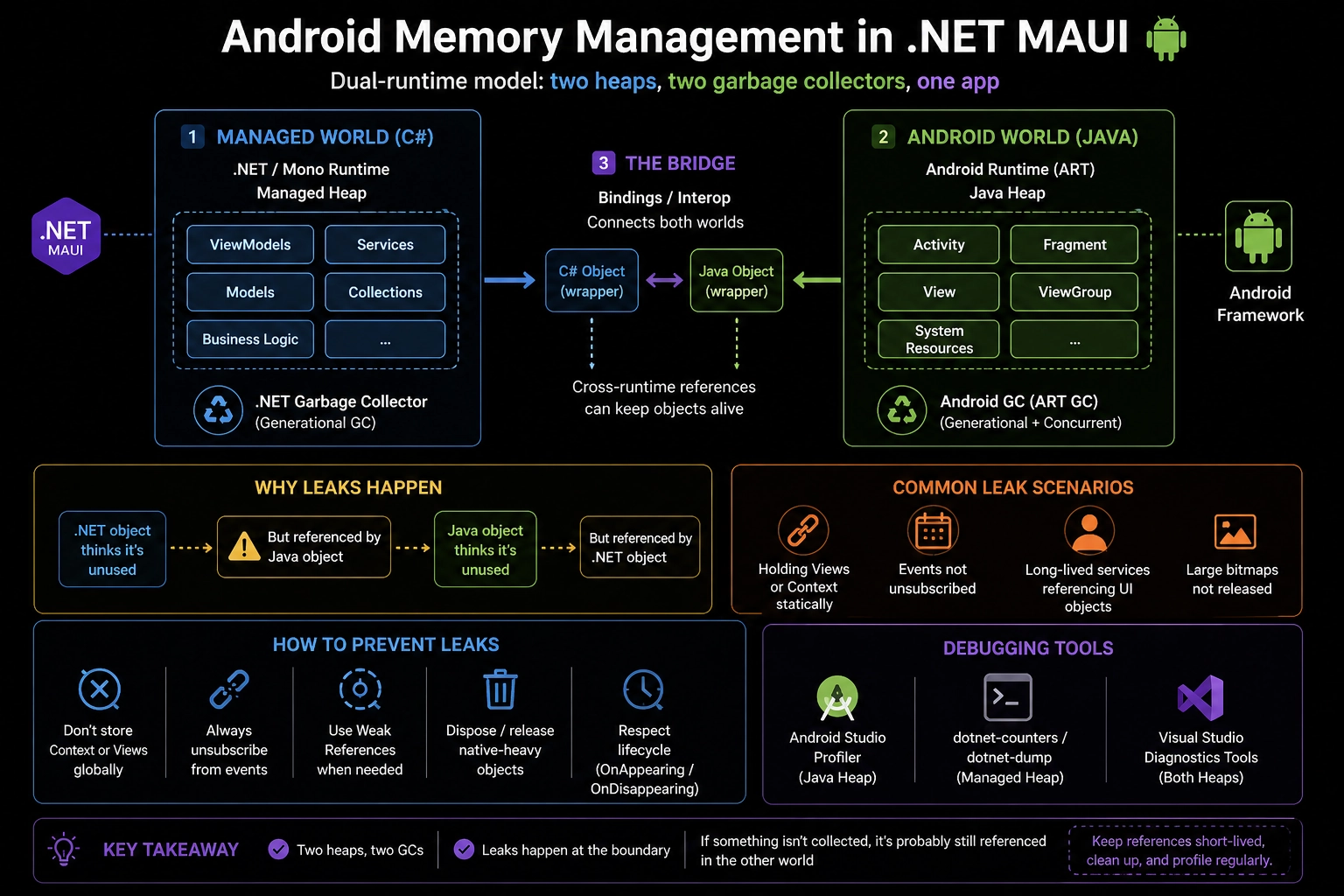
R8 performs three jobs in sequence: shrinking (removing unused Java classes and methods from the interop layer and third-party Android SDKs), obfuscation (renaming classes and methods to short, meaningless names to hinder reverse engineering), and optimization (inlining, dead code elimination, and bytecode optimization). All three run in a single pass, which is faster than the older ProGuard tool R8 replaced.
What .NET engineers should know:
- 👼 Junior: R8 runs automatically on Android Release builds and can strip Java interop classes your app needs — if the app crashes on Release but works on Debug, check logcat for
ClassNotFoundExceptionand add a-keeprule for the missing class. - 🎓 Middle: Maintain a
proguard.cfgfile inPlatforms/Androidfrom project start — add keep rules for every Android SDK integrated via Java bindings (Firebase, Google Play Services, third-party SDKs), and test Release builds on a device regularly to catch R8-related stripping issues before they reach production. - 👑 Senior: Treat R8 configuration as part of the release pipeline — automate Release build smoke tests on Android device farms to catch runtime crashes from aggressive R8 shrinking, use
--print-usageto audit what R8 removes, and evaluate obfuscation policy deliberately since it complicates crash report stack trace symbolication without a mapping file retained from the build.
📚 Resources: Enable app optimization with R8
❓ Describe Android-specific memory management in .NET MAUI apps.
.NET MAUI on Android has a dual-runtime memory model: managed heap (Mono/.NET GC) for C# objects and Java/ART heap for Java objects.
Every MAUI control that maps to a native Android view creates a peer pair: a managed C# object and a Java counterpart connected via JNI (Java Native Interface). This dual-GC architecture means memory pressure and collection timing are determined by two independent systems that don't coordinate directly, creating failure modes that don't exist on other platforms.
The core problem is the JNI global reference table. Every live Java peer object requires a JNI global reference to keep the Java side alive from the managed side. Android caps this table at 51,200 entries, exceeding it, crashes the app with JNI ERROR (app bug): global reference table overflow. This happens when large numbers of managed wrappers are created faster than the GC collects them, which is common in CollectionView with complex DataTemplate hierarchies or rapid navigation, creating and discarding pages.
Example of the peer object lifecycle and disposal pattern:
// Android Java peer — always dispose explicitly in long-lived scenarios
public partial class CustomAndroidView : IDisposable
{
    private Android.Views.View? _nativeView;
    private bool _disposed;

    protected override void OnHandlerChanged()
    {
        base.OnHandlerChanged();

        if (Handler?.PlatformView is Android.Views.View view)
            _nativeView = view;
    }

    public void Dispose()
    {
        if (_disposed) return;
        _disposed = true;

        // Explicit disposal releases JNI global reference immediately
        _nativeView?.Dispose();
        _nativeView = null;
    }
}
Example of detecting JNI reference table pressure via logging:
// Platforms/Android — monitor JNI reference count in debug builds
public class JniDiagnostics
{
    [Conditional("DEBUG")]
    public static void LogReferenceCount()
    {
        var count = Java.Interop.JniEnvironment
            .Runtime.GlobalReferenceCount;

        if (count > 40_000)
            Debug.WriteLine($"[WARNING] JNI global refs: {count}/51200 — risk of overflow");
        else
            Debug.WriteLine($"[JNI] Global refs: {count}");
    }
}
Example of reducing peer object pressure in CollectionView:
// Problematic — complex nested DataTemplate creates many Java peers per cell
// Each nested layout, image, and label creates a managed+Java peer pair

// Better — flatten DataTemplate hierarchy, reuse layouts
// Platforms/Android — use RecyclerView item view recycling explicitly
public class FlatProductViewHolder : RecyclerView.ViewHolder
{
    public TextView? NameView { get; }
    public TextView? PriceView { get; }

    public FlatProductViewHolder(Android.Views.View view) : base(view)
    {
        NameView = view.FindViewById<TextView>(Resource.Id.productName);
        PriceView = view.FindViewById<TextView>(Resource.Id.productPrice);
    }
}
Example of forcing GC collection under memory pressure on Android:
// Platforms/Android/MainActivity.cs
public override void OnTrimMemory(TrimMemory level)
{
    base.OnTrimMemory(level);

    if (level >= TrimMemory.Moderate)
    {
        // Signal both GCs under memory pressure
        GC.Collect(GC.MaxGeneration, GCCollectionMode.Forced);
        Java.Lang.JavaSystem.Gc();
    }
}
Android also provides OnLowMemory and OnTrimMemory lifecycle callbacks that MAUI apps should handle to release caches, bitmaps, and non-essential resources proactively. Ignoring these on low-end Android devices causes the OS to kill the app process to reclaim memory, which appears to the user as a crash.
What .NET engineers should know:
- 👼 Junior: Android .NET apps have two GCs — the .NET GC and Android's ART GC. JNI global references to Java peer objects are capped at 51,200 — creating thousands of MAUI controls rapidly without disposing them can crash the app with a reference table overflow.
- 🎓 Middle: Explicitly dispose Java peer objects in long-lived custom views and handlers, flatten
DataTemplatehierarchies to minimize peer object count per list cell, and handleOnTrimMemoryinMainActivityto release caches under memory pressure before the OS kills the process. - 👑 Senior: Profile JNI reference counts during stress testing of list-heavy and navigation-heavy flows using Android Studio Memory Profiler — establish a reference count budget per screen and enforce it in performance tests. Treat JNI reference table overflow as a release-blocking regression rather than an edge case, and evaluate whether complex list screens benefit from dropping down to native RecyclerView implementations to minimize the managed-Java peer surface.
📚 Resources:
❓ Compare the approaches for writing platform-specific code in .NET MAUI.
MAUI provides four distinct mechanisms for platform-specific code, each with different trade-offs in readability, testability, and scope. Choosing the right one depends on how much of the codebase needs the platform behavior and whether the platform logic needs to be tested or swapped independently.
The four approaches are: conditional compilation (#if), platform folders with automatic file scoping, partial classes splitting shared interface from platform implementation, and dependency injection with platform-specific service registration. They exist on a spectrum from quick-and-dirty inline branching to fully abstracted testable services.
Approach 1 — Conditional compilation is the fastest to write and the hardest to maintain. It scatters platform logic inline, making files harder to read as the number of platforms grows.
public string GetDeviceId()
{
#if ANDROID
    return Android.Provider.Settings.Secure.GetString(
        Android.App.Application.Context.ContentResolver,
        Android.Provider.Settings.Secure.AndroidId) ?? "unknown";
#elif IOS
    return UIKit.UIDevice.CurrentDevice.IdentifierForVendor?
        .AsString() ?? "unknown";
#elif WINDOWS
    return Windows.System.Profile.HardwareIdentification
        .GetPackageSpecificToken(null).Id.ToString();
#else
    return Guid.NewGuid().ToString();
#endif
}
Approach 2 — Platform folders automatically scope files to their platform TFM, with no directives needed. Best for fully platform-specific files with no shared surface.
// Platforms/Android/DeviceIdService.cs — auto-included in Android builds only
public class DeviceIdService
{
    public string GetDeviceId() =>
        Android.Provider.Settings.Secure.GetString(
            Android.App.Application.Context.ContentResolver,
            Android.Provider.Settings.Secure.AndroidId) ?? "unknown";
}

// Platforms/iOS/DeviceIdService.cs — auto-included in iOS builds only
public class DeviceIdService
{
    public string GetDeviceId() =>
        UIKit.UIDevice.CurrentDevice.IdentifierForVendor?
            .AsString() ?? "unknown";
}
Approach 3 — Partial classes split a shared method signature from platform implementations. Best for platform behavior that has a shared contract but divergent implementations.
// Shared — DeviceIdService.cs (root folder)
public partial class DeviceIdService
{
    public partial string GetDeviceId();
}

// Platforms/Android — DeviceIdService.cs
public partial class DeviceIdService
{
    public partial string GetDeviceId() =>
        Android.Provider.Settings.Secure.GetString(
            Android.App.Application.Context.ContentResolver,
            Android.Provider.Settings.Secure.AndroidId) ?? "unknown";
}

// Platforms/iOS — DeviceIdService.cs
public partial class DeviceIdService
{
    public partial string GetDeviceId() =>
        UIKit.UIDevice.CurrentDevice.IdentifierForVendor?
            .AsString() ?? "unknown";
}
Approach 4 — DI with interface abstraction is the most testable and decoupled approach. Best for anything consumed by ViewModels or shared business logic that needs mocking in tests.
public interface IDeviceIdService
{
    string GetDeviceId();
}

// Platforms/Android
public class AndroidDeviceIdService : IDeviceIdService
{
    public string GetDeviceId() =>
        Android.Provider.Settings.Secure.GetString(
            Android.App.Application.Context.ContentResolver,
            Android.Provider.Settings.Secure.AndroidId) ?? "unknown";
}

// MauiProgram.cs — per-platform registration
#if ANDROID
builder.Services.AddSingleton<IDeviceIdService, AndroidDeviceIdService>();
#elif IOS
builder.Services.AddSingleton<IDeviceIdService, IosDeviceIdService>();
#endif

// ViewModel — no platform reference
public partial class InfoViewModel : ObservableObject
{
    private readonly IDeviceIdService _deviceId;
    public InfoViewModel(IDeviceIdService deviceId) => _deviceId = deviceId;
    public string DeviceId => _deviceId.GetDeviceId();
}
Comparison:
| Approach | Readability | Testability | Best For |
|---|---|---|---|
#if directives | ❌ Cluttered | ❌ None | Quick one-liners |
| Platform folders | ✅ Clean | ⚠️ Limited | File-scoped platform code |
| Partial classes | ✅ Clean | ⚠️ Limited | Shared signature, divergent impl |
| DI + interface | ✅ Clean | ✅ Full | ViewModel-consumed services |
What .NET engineers should know:
- 👼 Junior: Use platform folders for platform-specific files and
#ifsparingly for single-line differences — avoid#ifblocks spanning more than a few lines as they make code hard to read and maintain. - 🎓 Middle: Use partial classes when a service has a shared contract consumed in shared code but implemented differently per platform — it's cleaner than
#ifat scale and avoids the DI overhead for utilities that don't need mocking. - 👑 Senior: Establish a team convention mapping each scenario to the appropriate mechanism —
#iffor trivial inline differences, platform folders for fully platform-scoped files, partial classes for platform utilities, and DI interfaces for anything touching ViewModels or requiring test isolation. Enforce the convention in code review and resist the entropy toward#ifsprawl that naturally accumulates in cross-platform codebases over time.
📚 Resources:
❓ How do you create binding projects for native iOS and Android libraries in .NET MAUI?
Binding projects are .NET class libraries that wrap native iOS (Objective-C/Swift) or Android (Java/Kotlin) libraries and expose them as strongly-typed C# APIs. When a native SDK has no official .NET NuGet package, a binding project is the mechanism for consuming it. The output is a regular NuGet or project reference that MAUI consumes like any other .NET library — the interop complexity is hidden inside the binding project.
The two platforms use completely different binding mechanisms. Android bindings work through automated Java bytecode analysis — the binding generator reads the .jar or .aar and automatically produces C# wrappers, with metadata transformations to fix naming and visibility. iOS bindings require manual API definition files (.cs files using Objective Sharpie output or hand-written) that describes the Objective-C interface surface to the C# compiler.
What .NET engineers should know:
- 👼 Junior: Android binding projects wrap
.jaror.aarfiles and auto-generate C# wrappers — iOS binding projects require manualApiDefinition.csfiles describing the Objective-C API. Both result in a NuGet-style reference consumed by MAUI platform code. - 🎓 Middle: Android bindings break when Java APIs use generics, inner classes, or Kotlin coroutines — fix these with
Metadata.xmltransformations andEnumFields/EnumMethodsmappings. iOS bindings require resolving all[Verify]attributes Objective Sharpie generates and manually maps Objective-C blocks to C# delegates. - 👑 Senior: Treat binding projects as long-term maintenance liability — native SDK updates frequently break bindings through API changes, removed classes, and new language features (Swift concurrency, Kotlin coroutines) that have no direct C# equivalent. Version-lock native SDKs in binding projects, automate binding project builds in CI against the locked SDK version, and evaluate whether a community-maintained binding (NuGet) or official .NET SDK exists before investing in a custom binding.
📚 Resources:
📖 Future reading
- Part 1: Core Language & Platform Fundamentals
- Part 2: Types and Type Features
- Part 3: Collections and Data Structures
- Part 4: Async & Parallel Programming
- Part 5: Design Patterns
- Part 6: ASP.NET Core
- Part 7: SQL Database
- Part 8: NoSQL Databases
- Part 9: Microservices and Distributed Systems
- Part 10: Testing
- Part 11: Desktop Development
- Part 13: AI
- Part 14: Agile & Scrum